> For the complete documentation index, see [llms.txt](https://newdocs.keeper.io/en/llms.txt). Markdown versions of documentation pages are available by appending `.md` to page URLs; this page is available as [Markdown](https://newdocs.keeper.io/en/enterprise-guide/keeper-msp/free-trial.md).
# Free Trial
Sign up for a free Keeper MSP trial license
If you want to try Keeper MSP before buying, then a trial is for you! Free trials are available for new customers and include unlimited licenses (for all plans offered). During a trial you can use all the core functionality of Keeper, set up your own staff administrators, and create Managed Companies. All Secure Add-On features will be activated during the trial period.
If you decide to purchase the product after a trial, then the users, vault data, and administrative configurations you have set up will be preserved for production operation.
To start a trial of Keeper MSP, click the Trial button from the MSP product page here: [**https://keepersecurity.com/msp-password-manager.html**](https://keepersecurity.com/msp-password-manager.html)
(1) Click **Start Free Trial**.

(2) Fill out the form using your Business Email Address, click **Start Free Trial**.

(3) Select Account Type and Data Center Location.
On this screen, you'll create your account (or if you're using an existing Keeper personal email address, select "Use an Existing Account").
{% hint style="warning" %}
**Important: At this step, please ensure that you select your desired Geographic Data Center location.**
* **Signup for USA, EUR, AUS, JP, and CA data center locations are available.**
* **GovCloud (FedRAMP Compliant) region is available for Public Sector entities.**
{% endhint %}

The choices available are USA, EUR, AUS, JP, and CA. Contact us for GovCloud public sector signup.

(4) Create your Master Password for your Administrator account.

Ensure you select a strong Master Password that is only used for managing Keeper. If you forget your Master Password, Keeper support cannot perform a password reset due to our Zero-Knowledge architecture. We recommend activating Account Recovery (via a recovery phrase) after logging in and visiting the Settings screen.
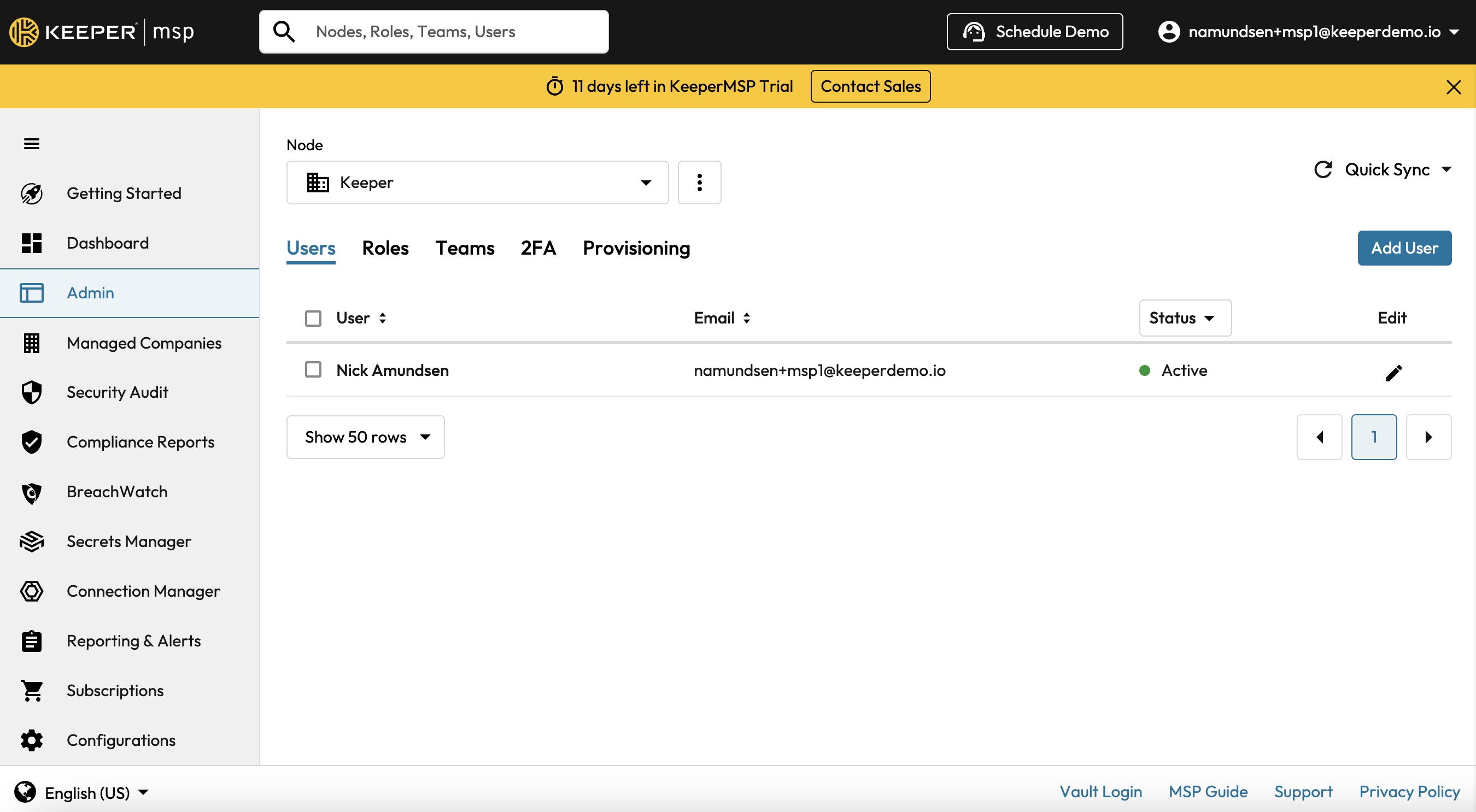
(5) After verifying your email address and selecting a Master Password, you will be logged into the Keeper Admin Console. Click the **Admin** tab from the left navigation panel to add users and begin your configuration.
Admin Settings for Keeper MSP
Once you’ve signed into the console, follow the "Getting Started" section on the following page.
---
# Agent Instructions
This documentation is published with GitBook. GitBook is the documentation platform designed so that both humans and AI agents can read, navigate, and reason over technical content effectively. Learn more at gitbook.com.
## Querying This Documentation
If you need additional information that is not directly available in this page, you can query the documentation dynamically by asking a question.
Perform an HTTP GET request on the current page URL with the `ask` query parameter, and the optional `goal` query parameter:
```
GET https://newdocs.keeper.io/en/enterprise-guide/keeper-msp/free-trial.md?ask=&goal=
```
`ask` is the immediate question: it should be specific, self-contained, and written in natural language.
`goal` is optional and describes the broader end goal you are ultimately trying to accomplish on behalf of the user. GitBook uses it to tailor the answer towards what is most useful for that goal.
The response will contain a direct answer to the question and relevant excerpts and sources from the documentation.
Use this mechanism when the answer is not explicitly present in the current page, you need clarification or additional context, or you want to retrieve related documentation sections.