Enforcement Policies
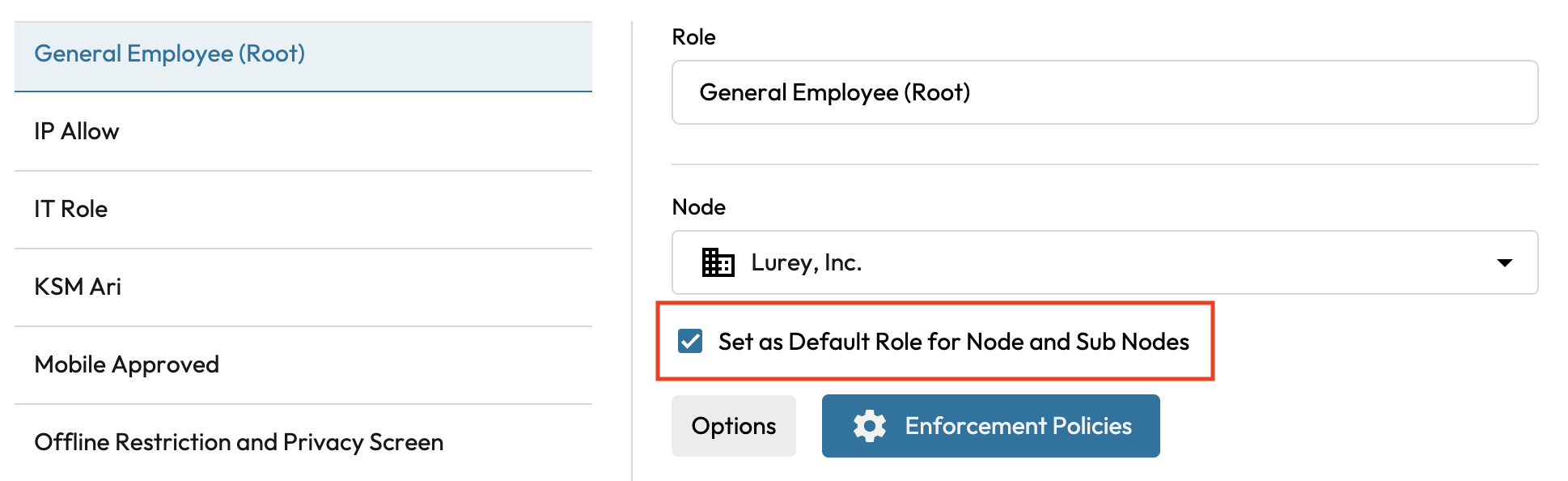
Role Enforcement Policies

Overview
Keeper role enforcement policies provide fine-grained control over the security and functionality of your Keeper environment.
Policy Sections:
Login Settings
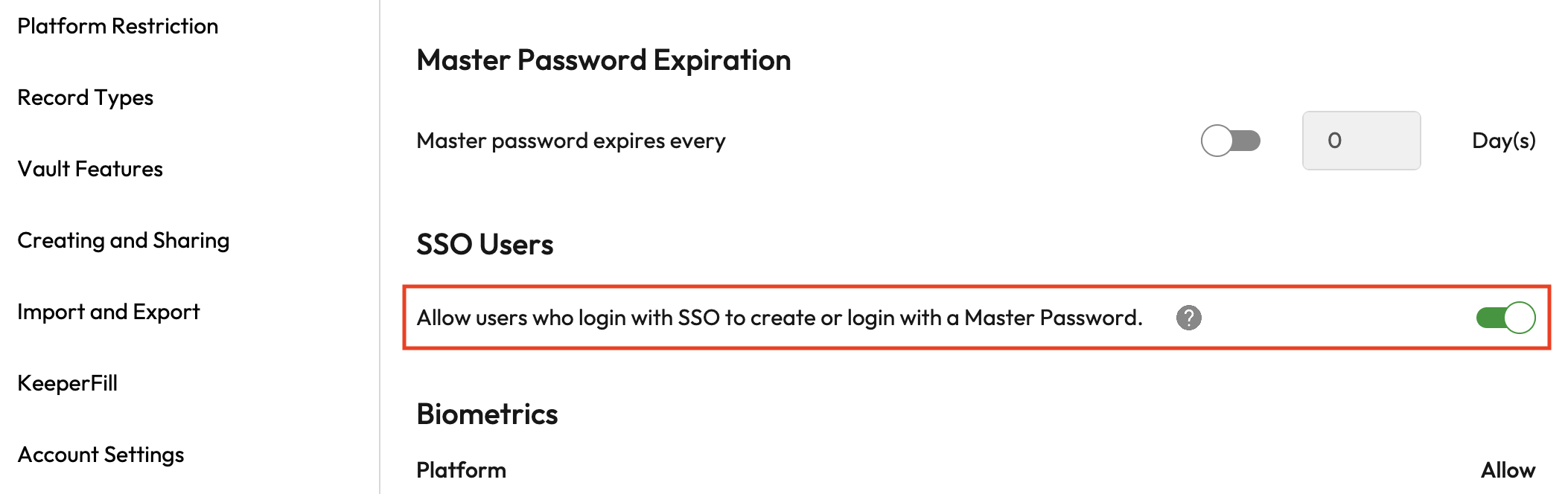
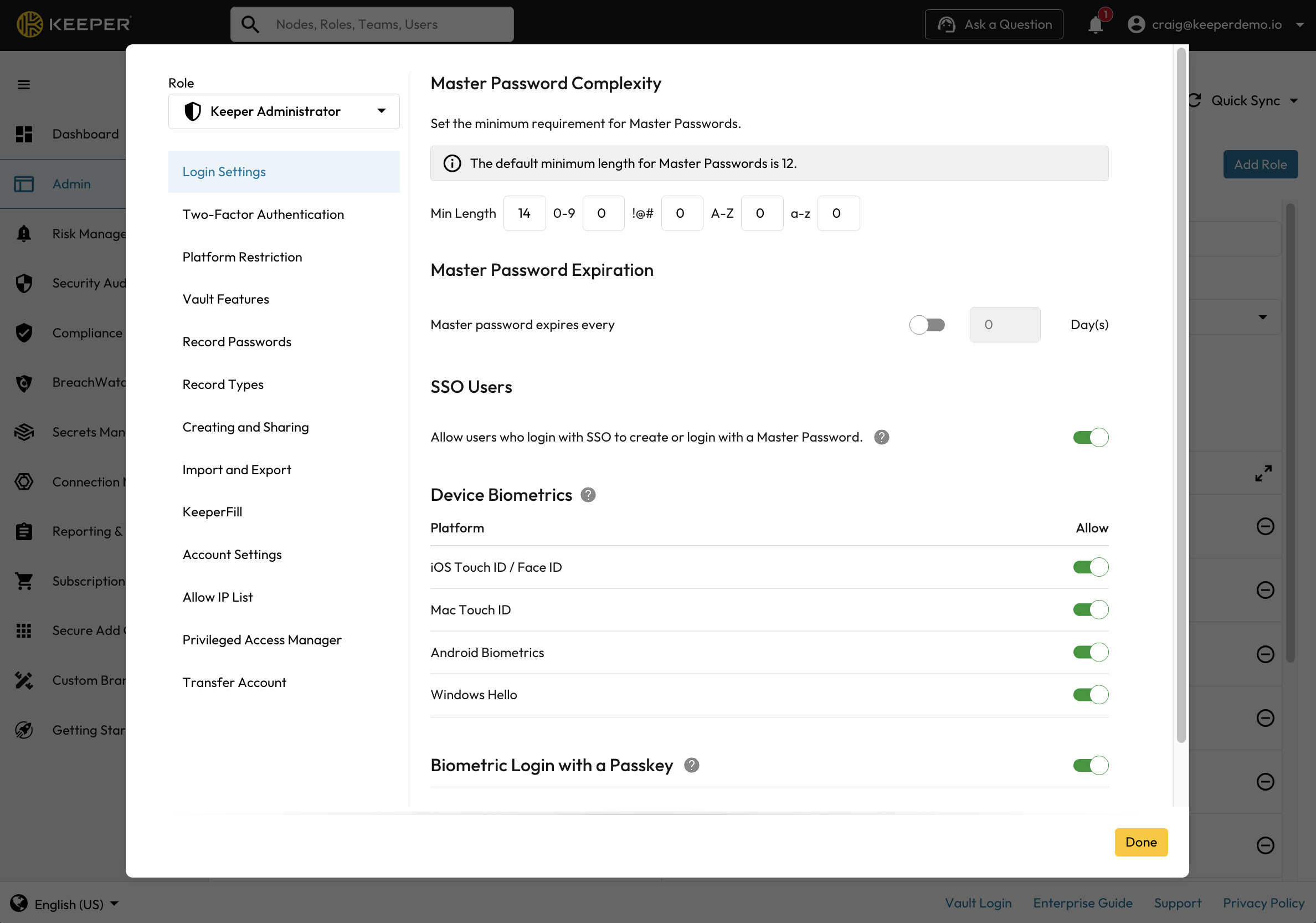
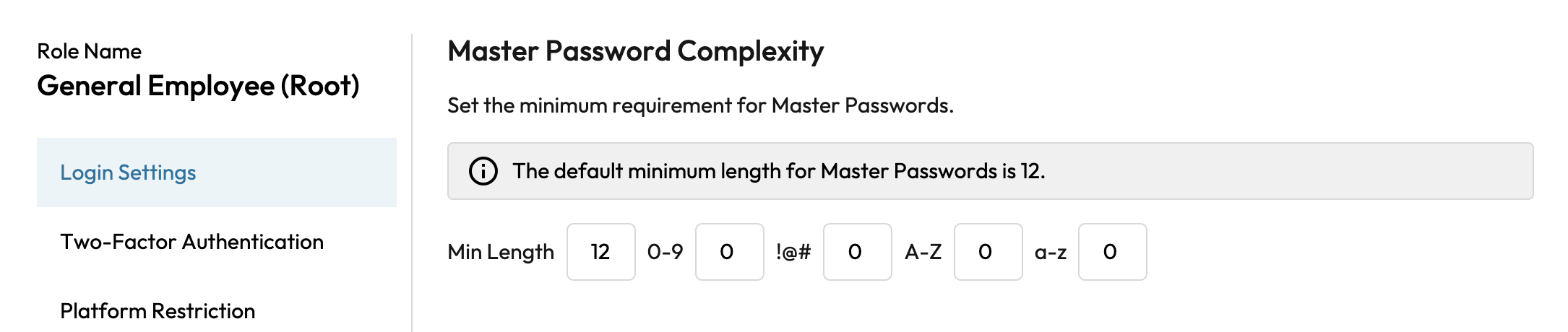
Login settings allow admins to configure master password requirements, authentication methods, and device-level access controls for each role. Admins can also set password complexity rules, enforce password expiration, manage SSO user access, and enable biometric authentication across platforms such as iOS Touch ID / Face ID.
Two-Factor Authentication (2FA)
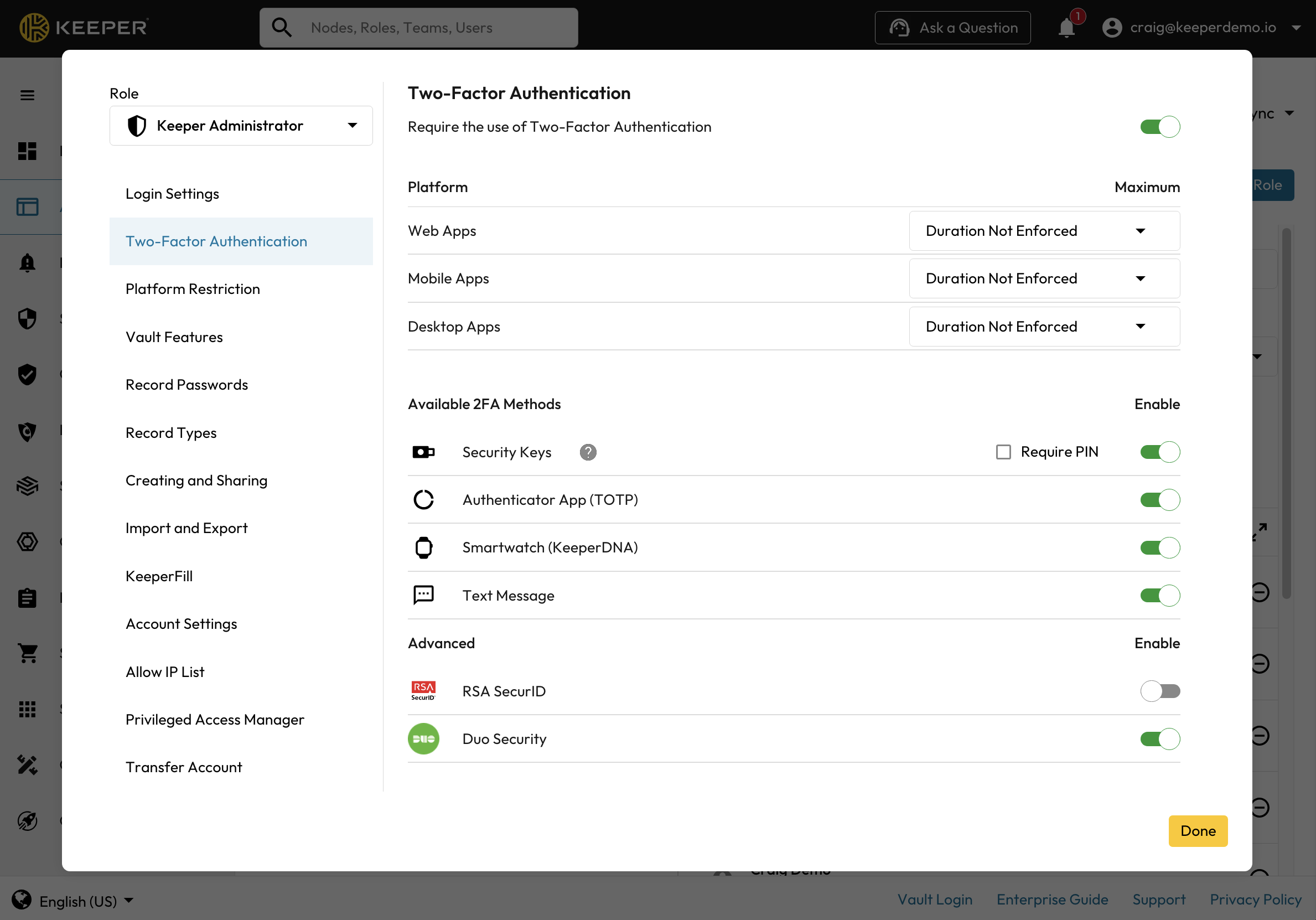
Turning on the Two-Factor Authentication policy will require users to select and set up a 2FA method when setting up their Keeper profile. Existing users will be forced to enable 2FA if this enforcement is applied.

If 2FA is enforced, the user will be prompted to set up 2FA upon account creation or login
If 2FA is enforced, it cannot be disabled by the user, but they can "Edit" and re-configure their 2FA
In addition to enforcing 2FA, the Admin can also specify how often users are prompted to re-authenticate with a new code.
Admin can disable a user's 2FA temporarily from the User detail screen in the Admin Console
Note that 2FA is always enforced on the Keeper servers once it has been configured for a user, no matter how often the user is prompted for a code. When a user has authenticated with a 2FA code, a token is generated on the device which is used for subsequent communication to the backend system.
On the user's device, the Admin can decide how often the user is prompted. For example, you can specify that users on Web Vault and Desktop app are prompted every login, but users on mobile devices are prompted once every 30 days. In any case, logging into a new device will always prompt the user.
In addition to specifying the 2FA prompting frequency, the Admin can specify which 2FA methods are available to users within the role. Different roles can be enforced with different methods.
Keeper supports the following 2FA methods:
FIDO2 WebAuthn Security Keys (supports PIN verification)
TOTP (Google Authenticator, Microsoft Authenticator or any time-based TOTP generator)
Smartwatch (Apple Watch or Wear OS)
Duo Security
Text Message (SMS)
Note: If "Biometric Login with a Passkey" is enabled, and the user creates a passkey on their device, they will not be separately prompted for 2FA on that specific device.
2FA and Device Approval
Keeper's advanced authentication system provides a built-in device verification that provides a second factor via email confirmation when attempting to login on an unrecognized device. If a user has configured 2FA, it can also be used as a method of device approval instead of email (for example, if email access is not possible).

Platform Restriction
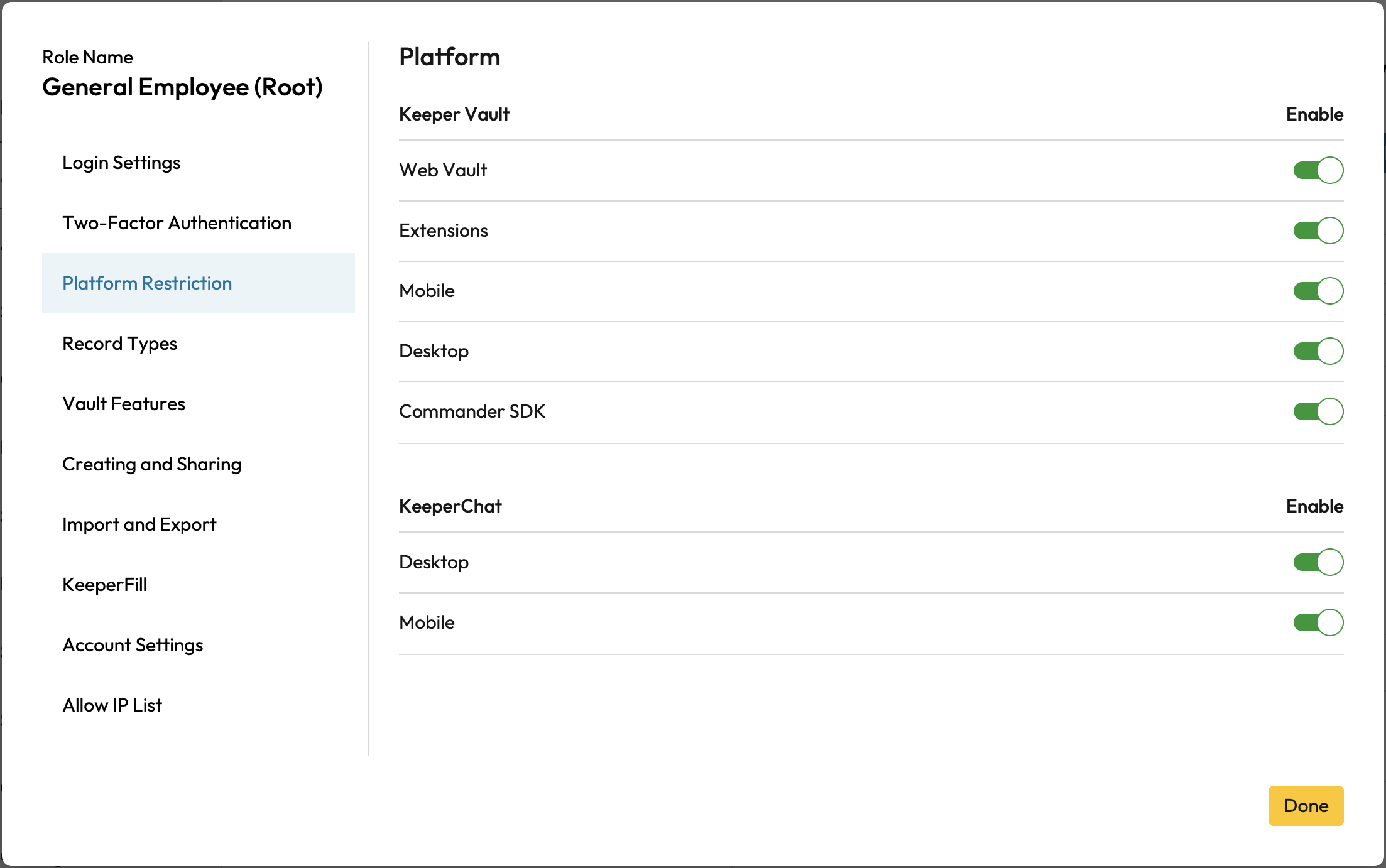
An Admin can restrict the use of specific platforms to access Keeper including the Web Vault, Browser Extensions, Mobile app, Desktop app, Commander SDK and KeeperChat.

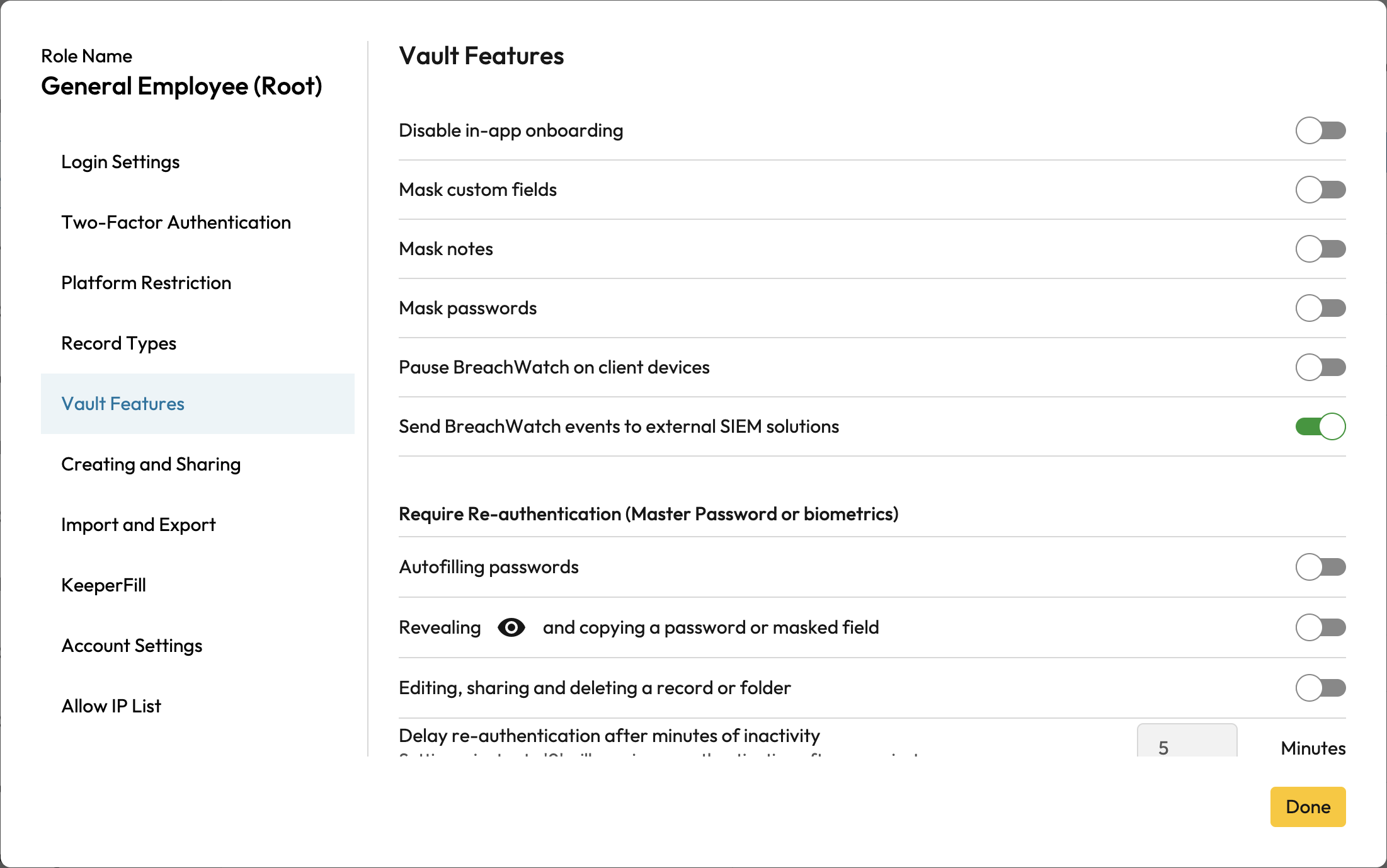
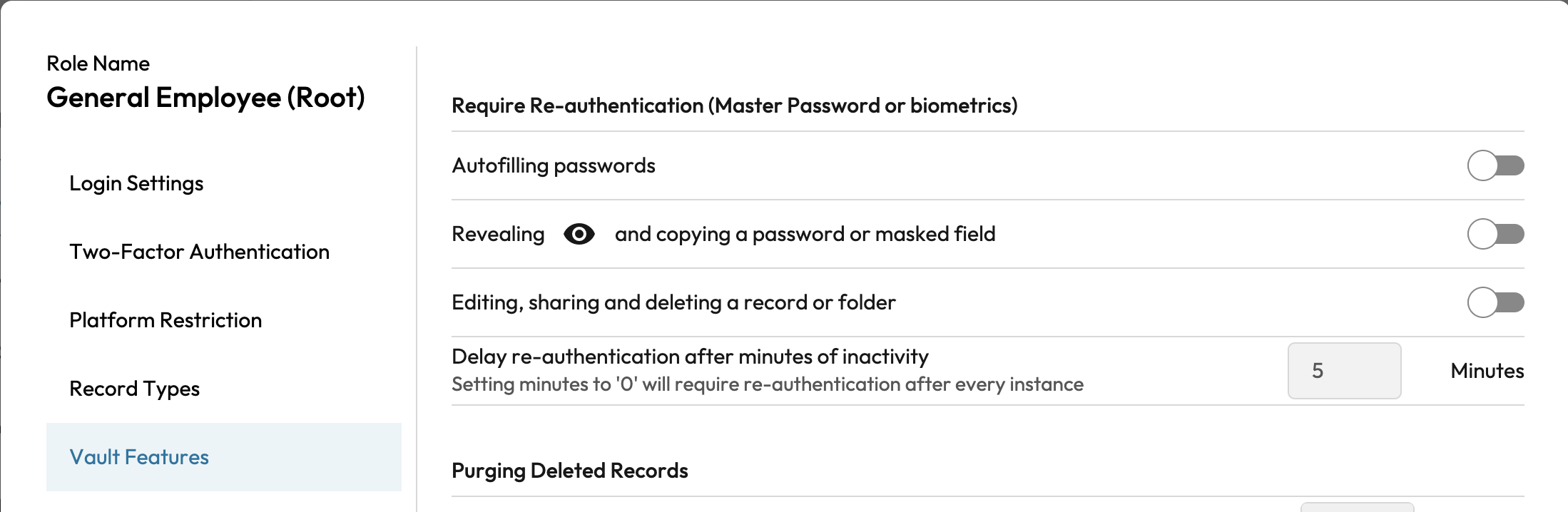
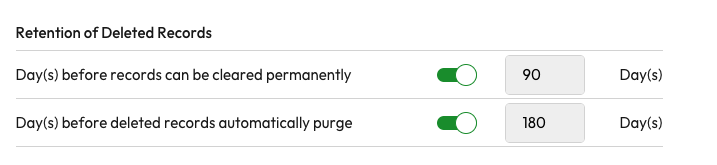
Vault Features
An Admin can prevent users in a role from using standard features in the Vault. Each individual policy is described below.


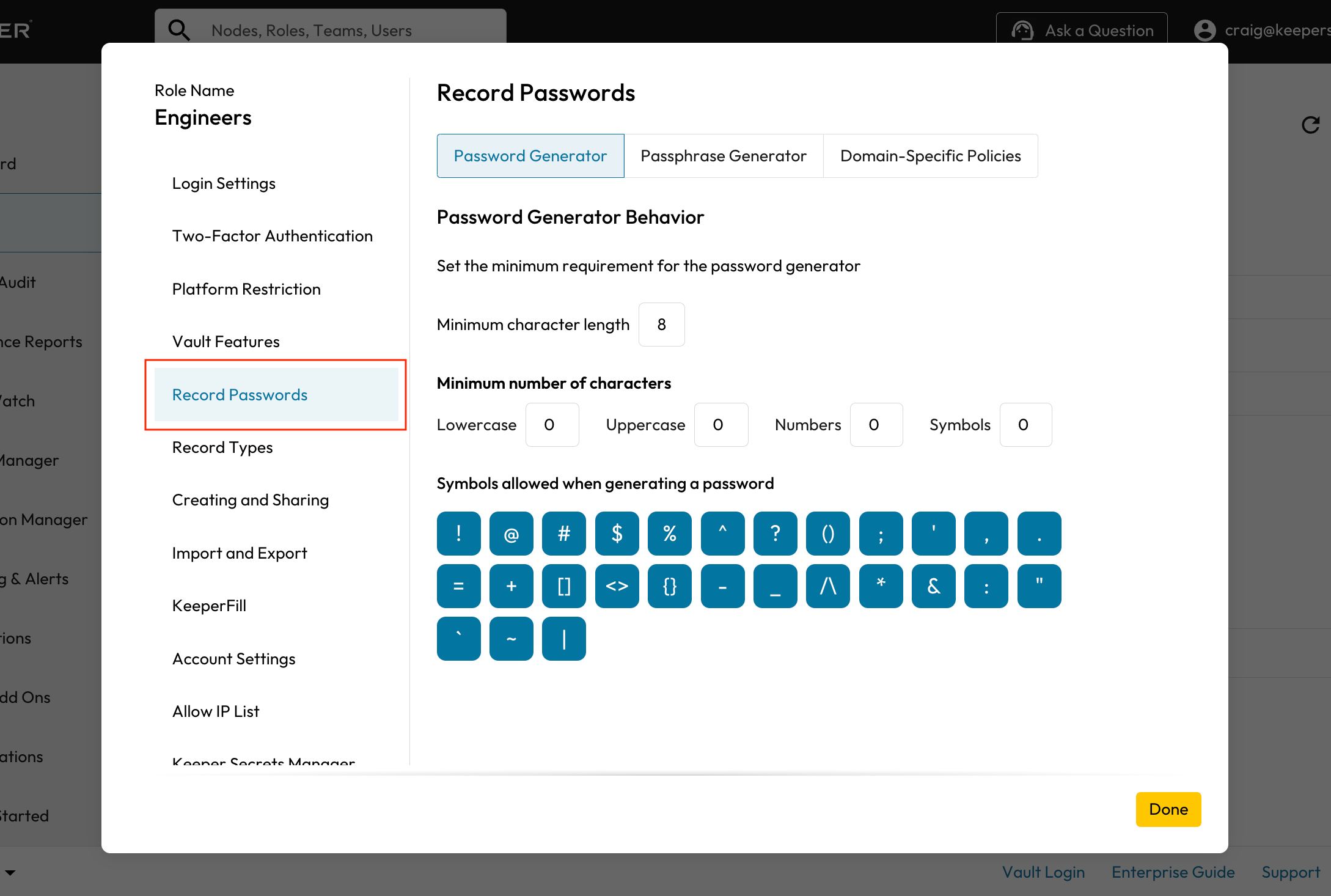
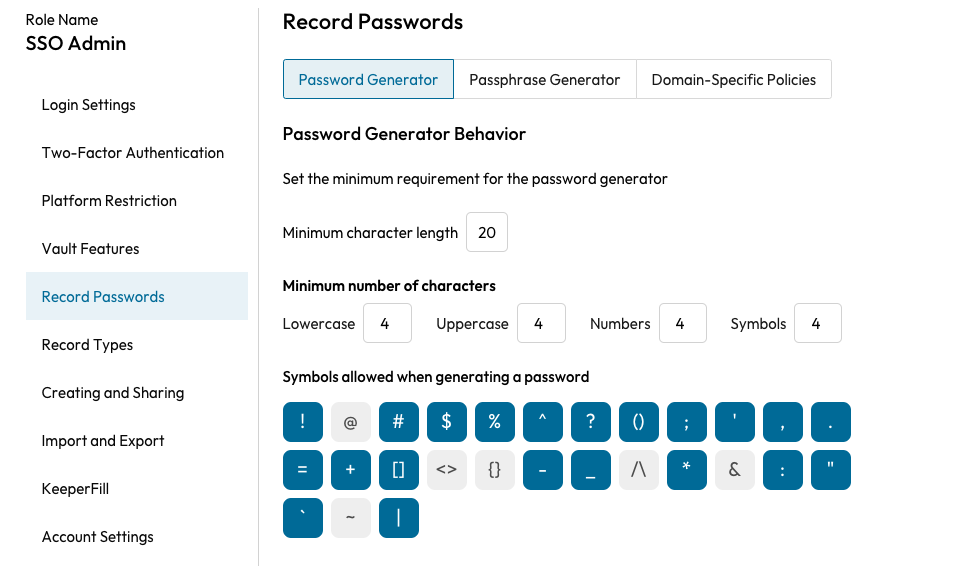
Record Passwords
Keeper's password and passphrase generator can be enforced as a general policy, or for specific website domains.


Watch the video below to learn more about the Privacy Screen feature.
Record Types
If record types are enabled for your account, specific record types that are not wanted can be enabled or disabled. Both default and custom record types can be enabled or disabled based on the role permissions. Custom record types show up below default types, but the desired order can be controlled within each users vault settings.

Turning off certain record types will affect what shows up in the drop downs in user vaults:

If all record types except one are disabled in the console, when creating a record in the vault, the popup to select a record type will not appear. The workflow will continue as if record types has not been enabled for users in that role.
If records are shared with another organization that does not have record types enabled, the data will be there, but not visible until that organization has record types enabled.
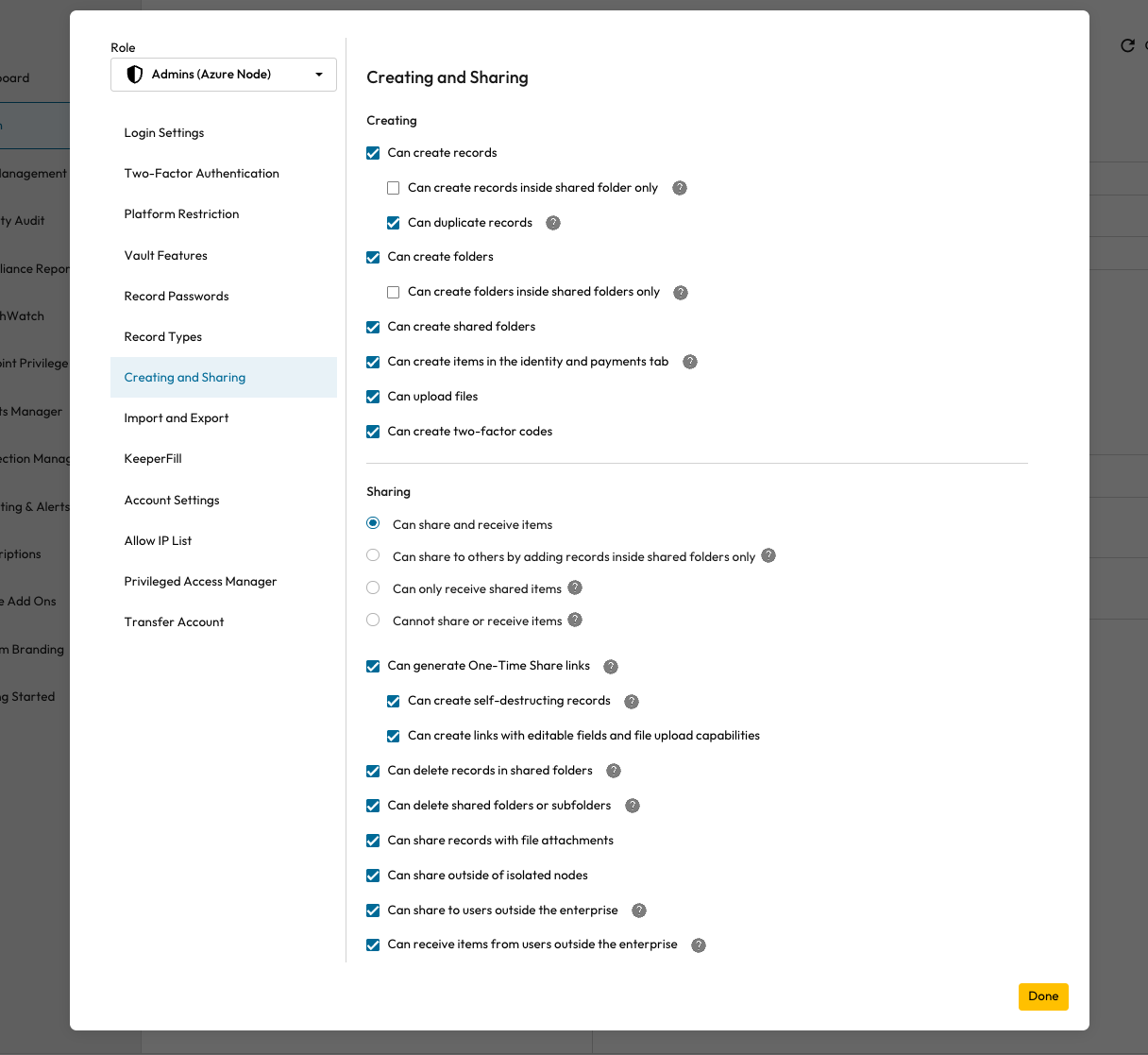
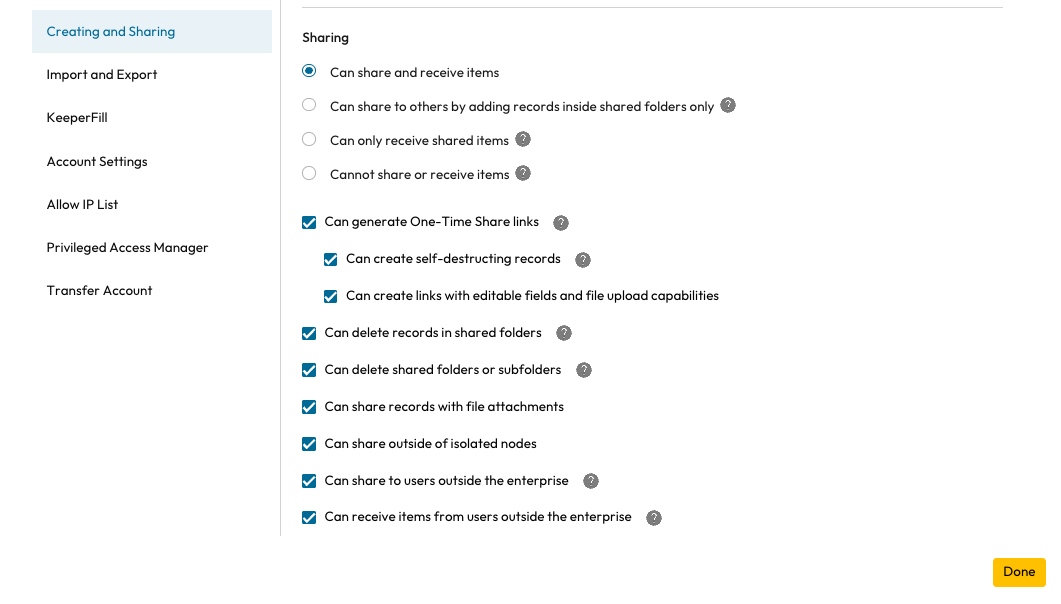
Creating and Sharing
Creating and sharing enforcements offer admins a wide range of granular, flexible restrictions that can be applied to users when both creating and sharing records.


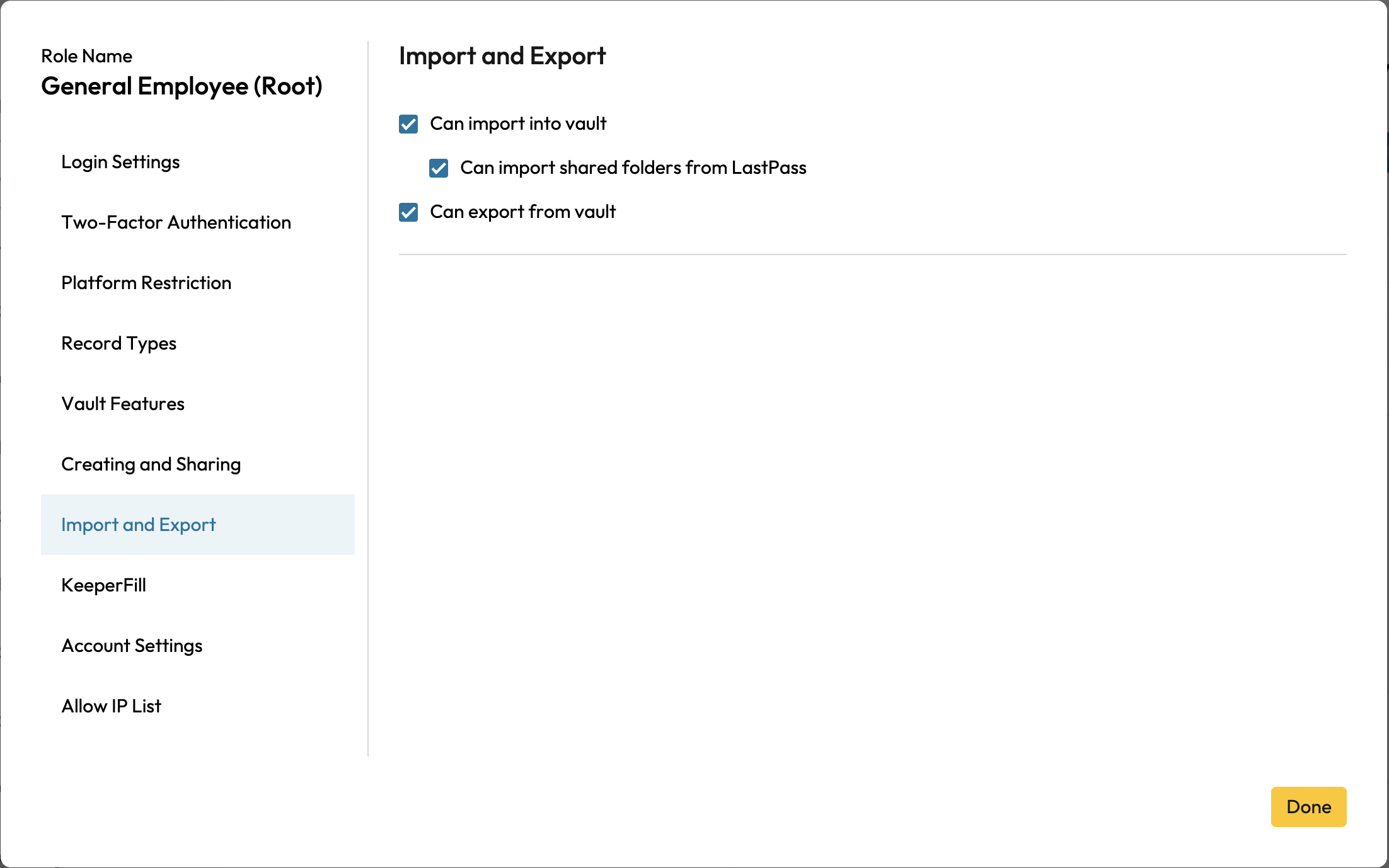
Import and Export
"Import" and Export" enforcements offers admins more targeted control over their users’ ability to import and export from their vaults.

Importing and exporting can be customized to:
Import into vault, including the ability to restrict importing shared folders from LastPass.
Export from vault
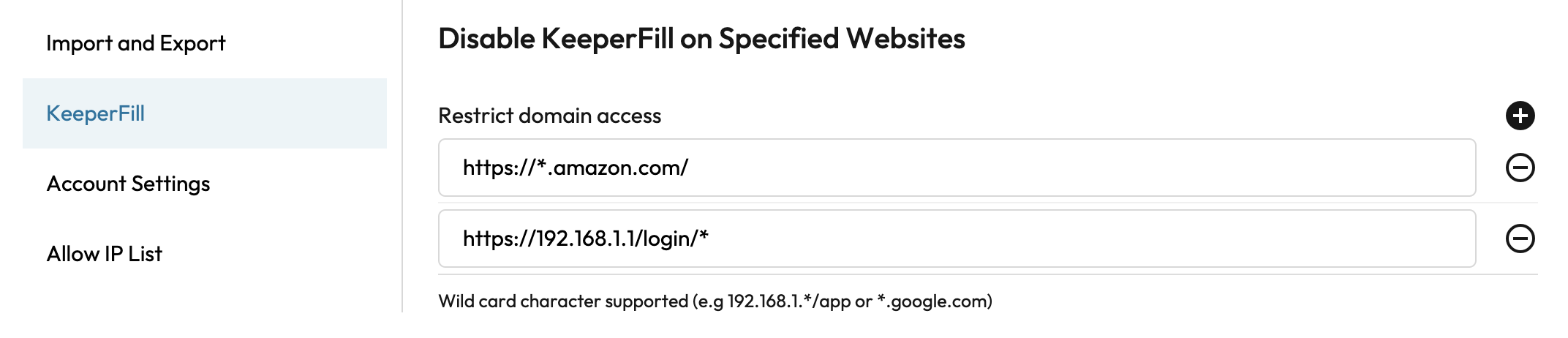
KeeperFill
The KeeperFill policies govern the behavior of the browser extension that allows Keeper users to autofill usernames, passwords, and other credentials on websites and applications.


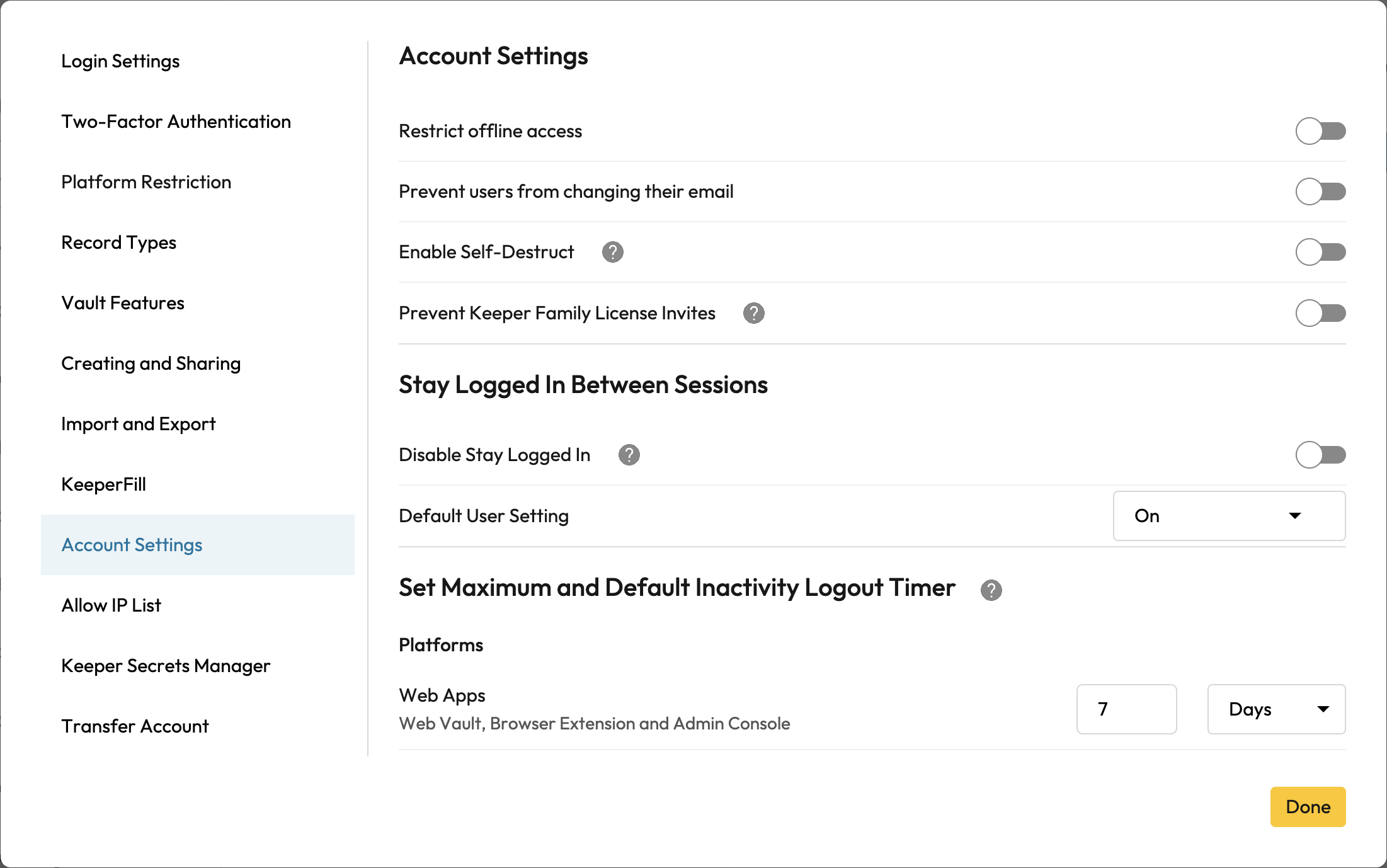
Account Settings
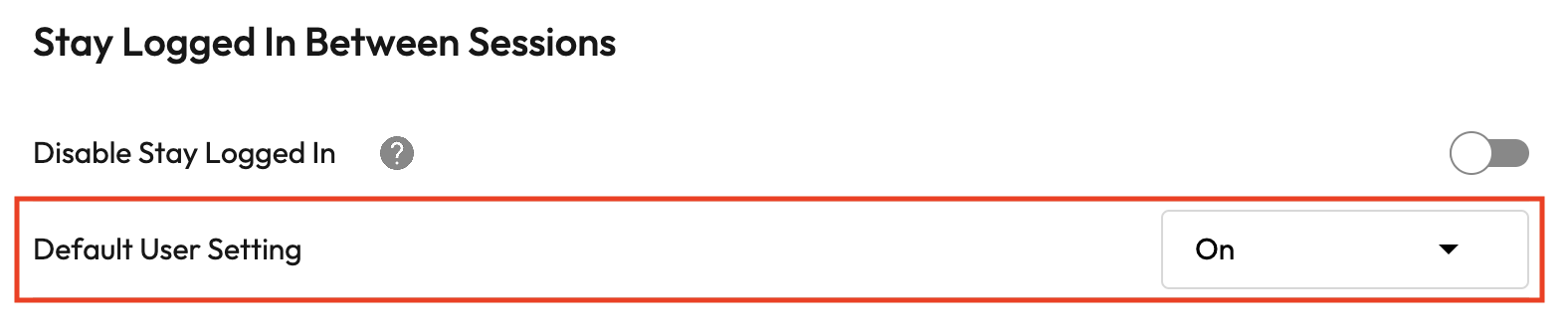
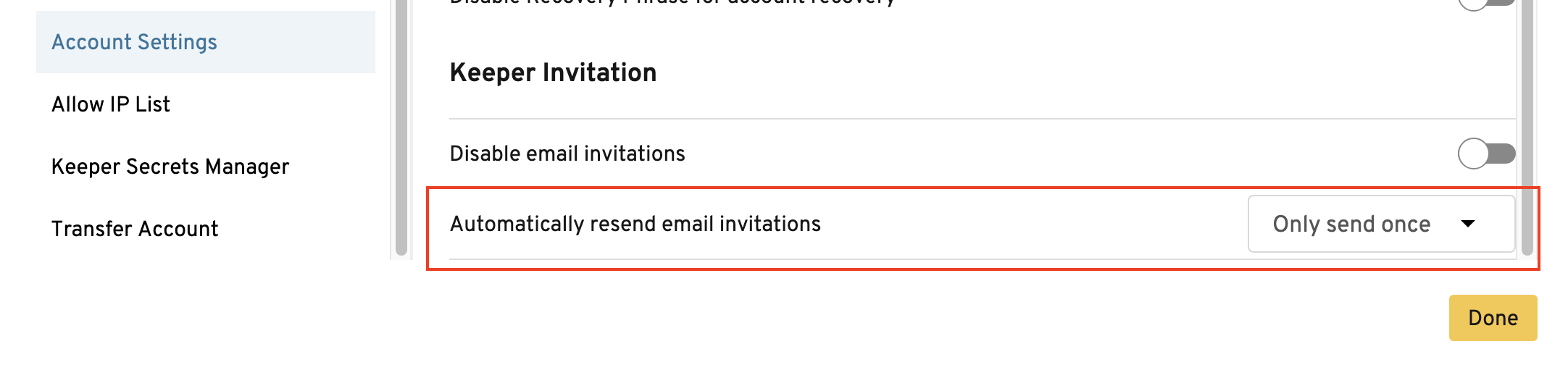
Account Settings allows you to manage security and access controls across your organization's Keeper accounts. From restricting offline access and account switching, to enabling self-destruct and preventing users from changing their email, admins have granular control over user behavior. You can also configure session logout timers per platform, manage account recovery options, and control how Keeper email invitations are sent to users.


Allow IP List
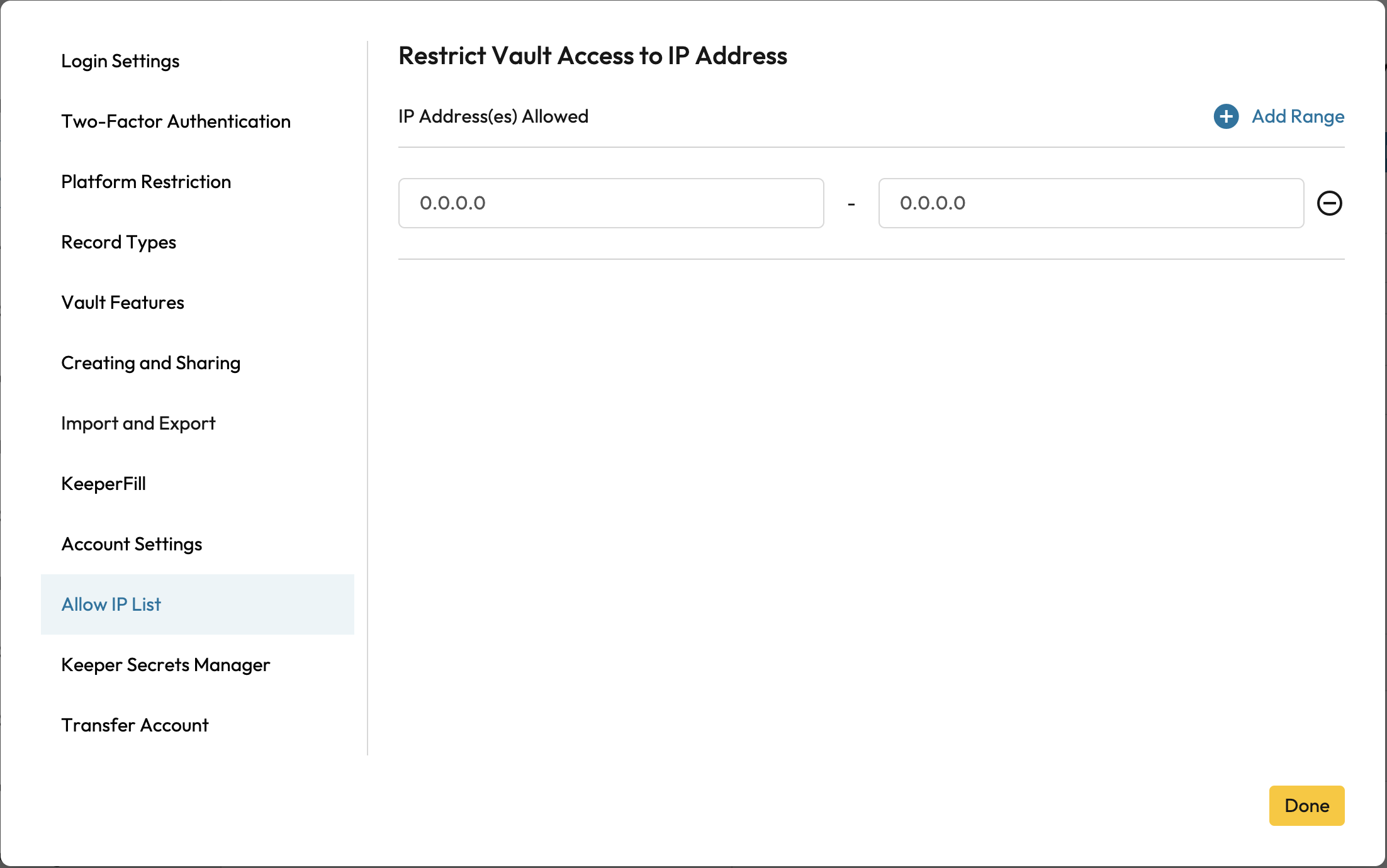
Users within the specified role can be restricted to use Keeper outside a set of IP address ranges. The IP address must be your external (public) address as seen by the Keeper infrastructure at the time of user login. To add an IP Range, click on Add Range.

Privileged Access Manager
If you are a KeeperPAM customer, you'll have the ability to manage role permissions for all privileged access capabilities through the Privileged Access Manager tab, which also includes Keeper Secrets Manager permissions.

Can create applications and manage secrets
Can create, deploy and manage Keeper Gateways
Can configure rotation settings
Can rotate credentials
Can configure connection settings
Can launch connections
Can view session recordings
Can configure tunnel settings
Can start tunnels
Can configure remote browsing
Can launch remote browsing
Can view RBI session recordings
Can run discovery
Can manage workflow settings
Transfer Account
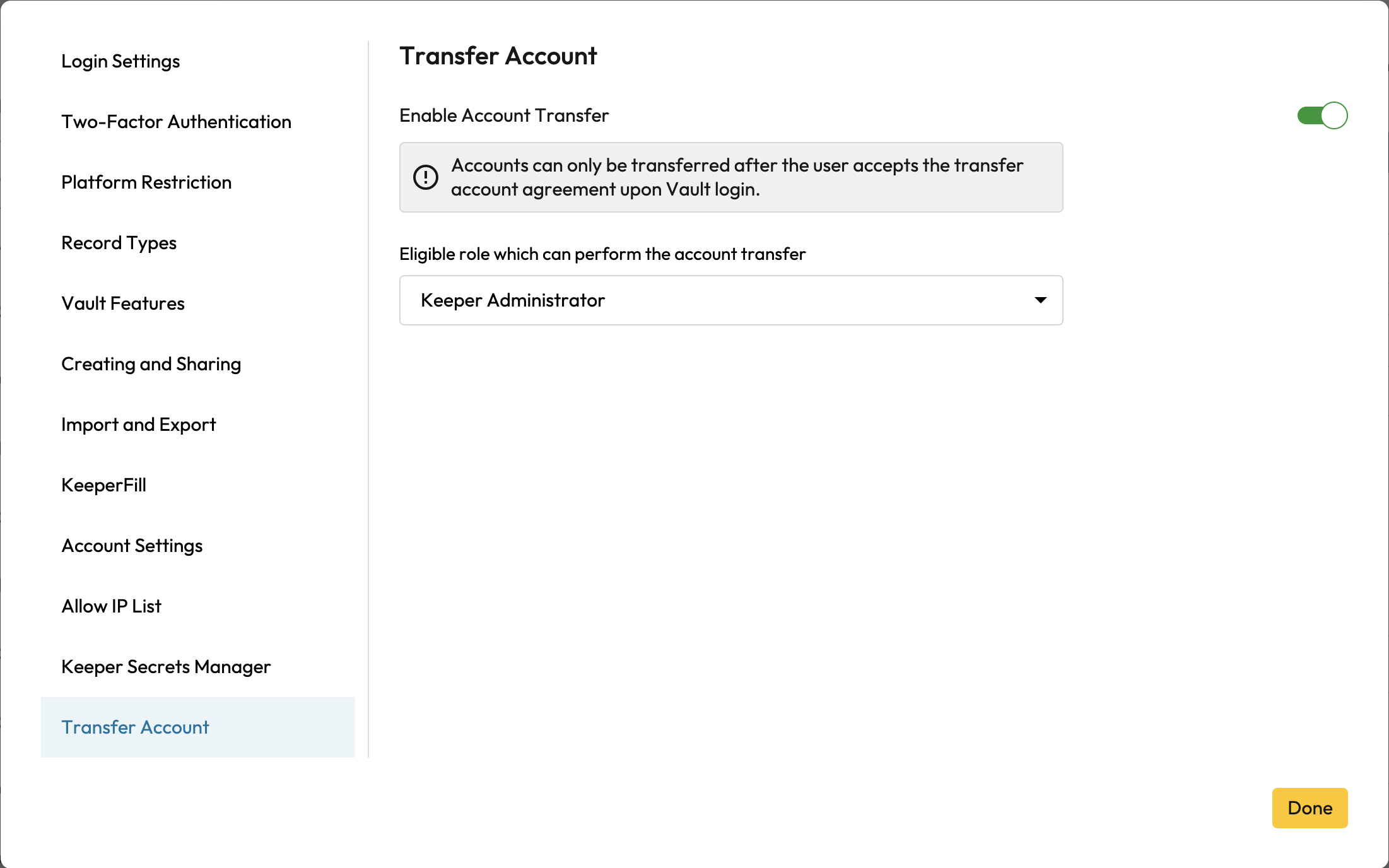
To enable Account Transfer, toggle the switch on and select the eligible role that can perform the account transfer from the dropdown menu.

Managing Policies in Keeper Commander CLI
Keeper Commander, our command-line CLI and Python-based SDK supports the ability to modify roles and enforcement policies.
For more information, visit: Enterprise Role Commands
Here's an example restricting the "Engineering" role to restrict the export of records.
Video Overview
Watch the video below to learn more about Enforcement Policies.
Last updated
Was this helpful?