> For the complete documentation index, see [llms.txt](https://newdocs.keeper.io/en/llms.txt). Markdown versions of documentation pages are available by appending `.md` to page URLs; this page is available as [Markdown](https://newdocs.keeper.io/en/keeperpam/privileged-access-manager/getting-started/gateways/auto-updater.md).
# Auto Updater
Instructions for installing and configuring the Auto Updater for the KeeperPAM Gateway.
## Overview
Automatic updates of the KeeperPAM Gateway can be enabled on Linux and Windows installations through Keeper's Auto Updater feature. The Auto Updater makes periodic checks to update your KeeperPAM Gateway to the latest version.
{% hint style="info" %}
By default, the Auto Updater is disabled when installing the KeeperPAM Gateway
{% endhint %}
We recommend enabling the Auto Updater to ensure you receive the most recent security and functionality enhancements. The Auto Updater verifies all KeeperPAM Gateway downloads by checking the GPG signature of hash value, which are then utilized to checksum each file.
## **Auto Updater Installation**
### **Prerequisites**
* Ensure that you have administrative privileges on the system.
* Version 1.4.0 or later of KeeperPAM Gateway is required.
### **Docker**
On Docker based installations, the best way to update the container is running the below commands from a cron job or your CI/CD tools.
As an example, create a file called `update_gateway.sh` that contains:
```bash
#!/bin/bash
set -e # Exit immediately if a command fails
# Navigate to the directory containing your docker-compose.yml file
cd /path/to/your/docker-compose-directory
# Pull the latest image and update the Gateway container
docker compose pull
docker compose up -d keeper-gateway
```
Make the script executable:
```
chmod +x update_gateway.sh
```
Edit the crontab:
```
crontab -e
```
Add a line to schedule the script. For example, to run it every day at 3 AM:
```
0 3 * * * /path/to/update_gateway.sh >> /var/log/update_gateway.log 2>&1
```
### **Linux**
#### **New Gateway**
Execute the following command to download and run the KeeperPAM installer with auto update enabled.
The `--autoupdate` parameter activates the auto updater in addition to the KeeperPAM Gateway.
{% code overflow="wrap" %}
```bash
curl -fsSL https://keepersecurity.com/pam/install | \
sudo bash -s -- --autoupdate
```
{% endcode %}
#### **Existing KeeperPAM Gateway**
Activate the Auto Updater on an existing installation by executing the following KeeperPAM Gateway command:
```
sudo keeper-gateway autoupdate enable
```
**Verify Installation (Optional)**
Verify that the Auto Updater has been installed successfully by executing the following KeeperPAM Gateway command:
```bash
sudo keeper-gateway autoupdate status
```
### Windows
#### New Gateway
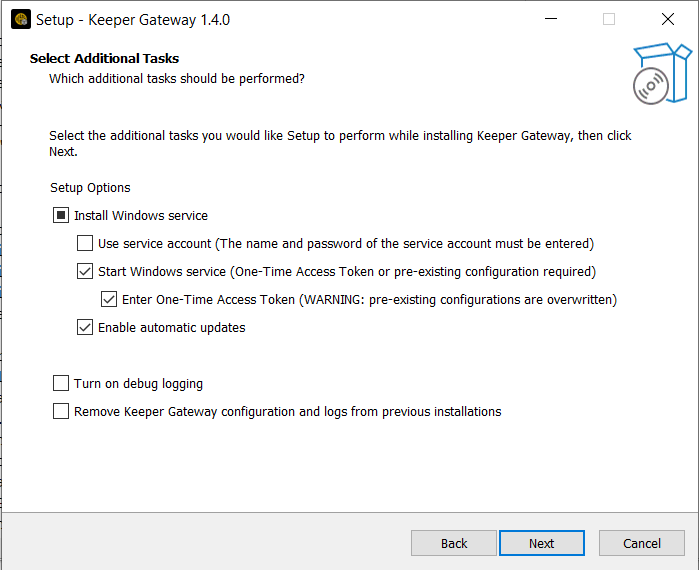
* Download and run the latest version of the Gateway installer.
* During installation, check the box "Enable automatic updates".
* This setup option will create a new Task Scheduler task for updating the Gateway.
Windows Automatic Updates
**Existing Gateway**
* Open a command prompt as Administrator.
* Install Auto Updater with the following KeeperPAM Gateway command:
```
keeper-gateway autoupdate enable
```
**Verify Installation (Optional)**
* Open a command prompt as Administrator.
* Verify that Auto Updater has been installed successfully by executing the following KeeperPAM Gateway command:
```
keeper-gateway autoupdate status
```
## Auto Updater Status
### Prerequisites
* Ensure that you have administrative privileges on the system.
* Version 1.4.0 or later of KeeperPAM Gateway is required.
### Status on Linux
Check the Auto Updater status by executing the following KeeperPAM Gateway command:
```bash
sudo keeper-gateway autoupdate status
```
### Status on Windows
* Open a command prompt as Administrator
* Check the Auto Updater status by executing the following KeeperPAM Gateway command:
```
keeper-gateway autoupdate status
```
## Auto Updater Configuration
### Configuration on Linux
Edit the crontab that runs Auto Updater.
```bash
sudo crontab -e
```
Here is an example of the default crontab entry that checks for updates every hour:
```
0 * * * * /usr/local/bin/keeper-gateway-update --trust
```
* The first part `0 * * * *` is the crontab expression which will cause execution to occur every hour at 0 minutes.
* The second part is the update command `keeper-gateway-update`
* The option `--trust` causes explicit trust of the KeeperPAM Gateway GPG public key for verification of downloaded install files.
### Configuration on Windows
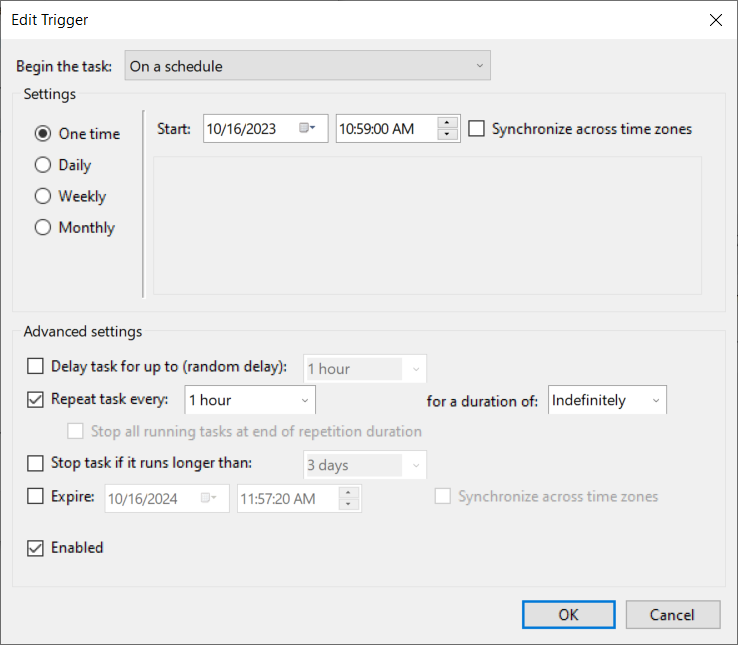
Configure the update frequency and other settings with the following steps:
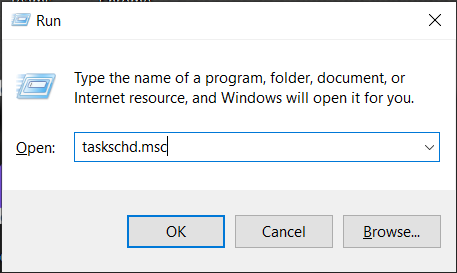
* Run `taskschd.msc` to open Windows Task Scheduler.
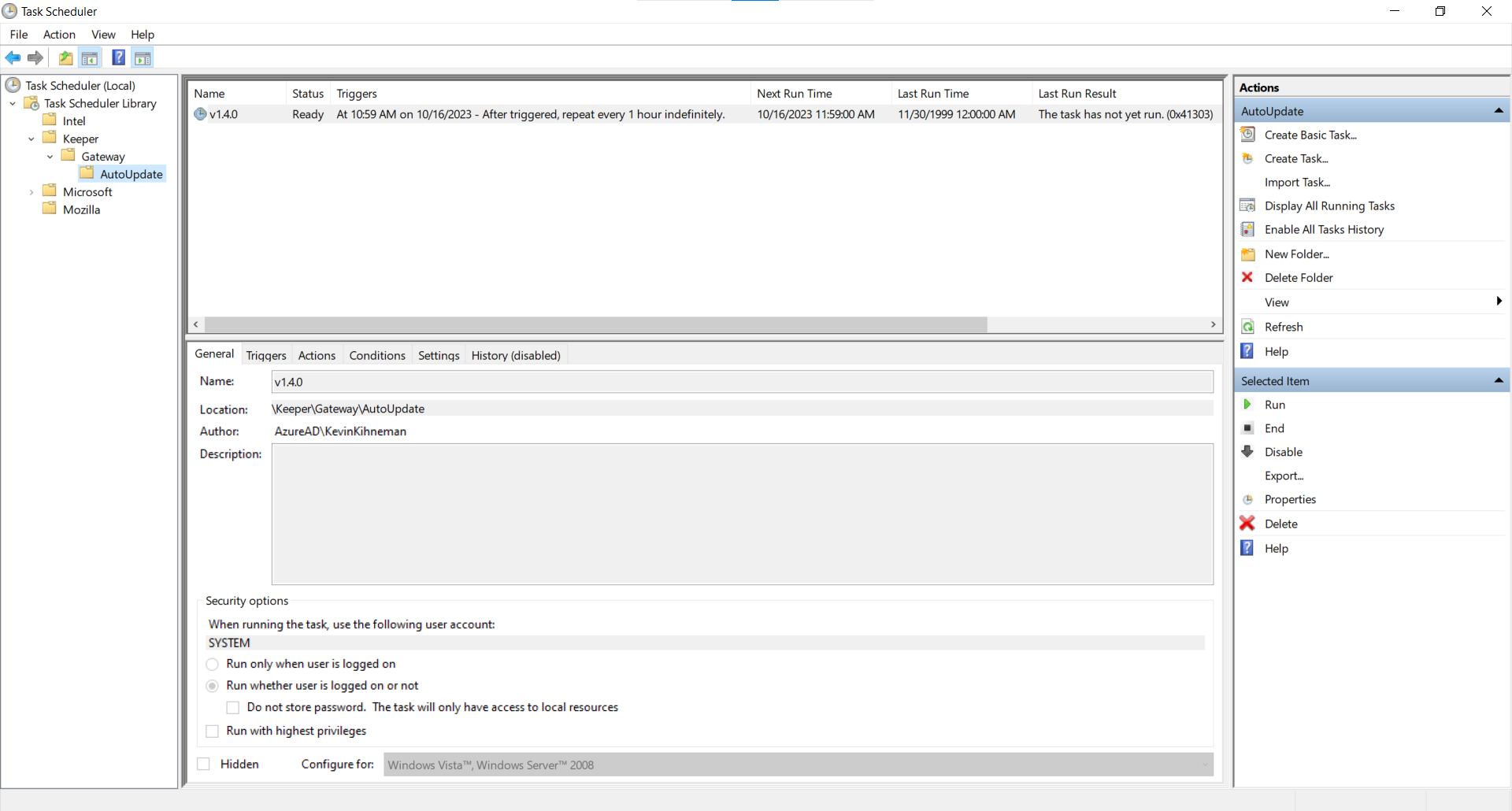
* In the left pane double-click on Task Scheduler Library -> Keeper -> Gateway -> AutoUpdate to show the Auto Updater Task.
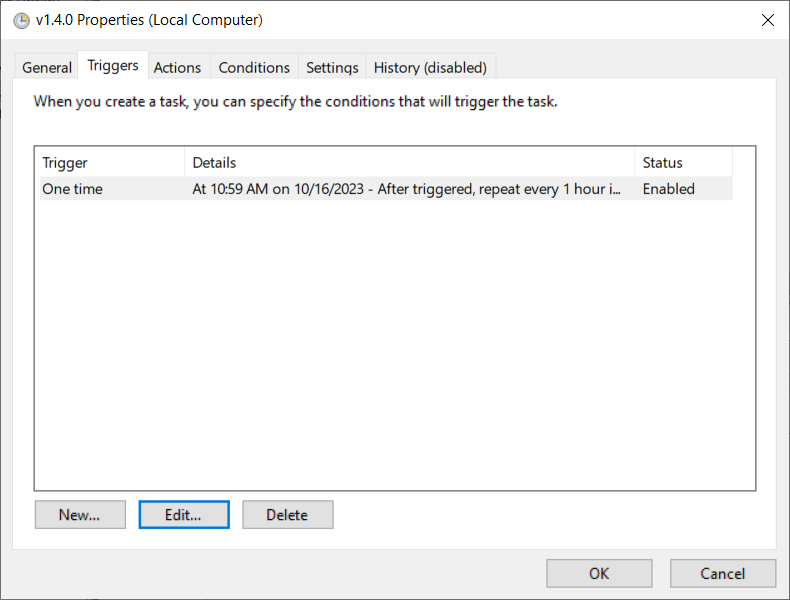
* In the upper middle pane double-click on the AutoUpdate Task with the name of the current version and click on the Triggers menu tab.
* Click `Edit...` to change when the Auto Updater checks for a new update to install. The default is to "Repeat task every 1 hour indefinitely" as shown below.
## Auto Updater Removal
### Prerequisites
* Ensure that you have administrative privileges on the system.
* Version 1.4.0 or later of KeeperPAM Gateway is required.
### Removal on Linux
Remove Auto Updater by executing the following KeeperPAM Gateway command:
```bash
sudo keeper-gateway autoupdate disable
```
### Removal on Windows
Remove Auto Updater with the following steps:
* Open a command prompt as Administrator.
* Remove Auto Updater with the following KeeperPAM Gateway command:
```
keeper-gateway autoupdate disable
```
## Troubleshooting
### Check the status of the Auto Update
```
keeper-gateway autoupdate status
```
### Logging in the Gateway Auto Updater
To assist with diagnosing issues or monitoring the status of updates, the Gateway Auto Updater generates two types of logs. These logs are subject to rotation policies to avoid overuse of disk space.
### Linux
**Log Location**
All log files for Linux are located in `/var/log/keeper-gateway`
**Log Files**
* **Update Logs**:\
Any logs generated during an update will be timestamped and stored as `update_YYYY-MM-DD_HH-MM-SS.log`.
* **Last Update Check**:\
The file `last-update-check.log` contains information regarding the most recent check for updates.
### Windows
#### **Log Location**
The log files for the Gateway Auto Updater are located in `\ProgramData\KeeperGateway\install`
**Log Files**
* **Update Logs**:\
Any logs generated during an update will be timestamped and stored as `YYYY-MM-DD_HH-MM-SS.log`
* **Last Update Check**:\
The file `last-update-check.log` contains information regarding the most recent check for updates.
---
# Agent Instructions
This documentation is published with GitBook. GitBook is the documentation platform designed so that both humans and AI agents can read, navigate, and reason over technical content effectively. Learn more at gitbook.com.
## Querying This Documentation
If you need additional information that is not directly available in this page, you can query the documentation by asking a question.
Perform an HTTP GET request on the following URL with the `ask` and `goal` query parameters:
```
GET https://newdocs.keeper.io/en/keeperpam/privileged-access-manager/getting-started/gateways/auto-updater.md?ask=&goal=
```
`ask` is the immediate question: it should be specific, self-contained, and written in natural language.
`goal` is what the user is ultimately trying to achieve, the reason they need the answer. Sharing it helps GitBook give you a better, more relevant answer. A goal is most helpful when it describes the outcome the user wants rather than restating the question. For example, with `ask=how do I create an API token`, a goal like `automate deployments from our CI pipeline` lets GitBook tailor the answer to that use case.
The response will contain a direct answer to the question and relevant excerpts and sources from the documentation.
Use this mechanism when the answer is not explicitly present in the current page, you need clarification or additional context, or you want to retrieve related documentation sections.