KeeperAI
AI-powered threat detection for KeeperPAM privileged sessions

Overview
KeeperAI is an agentic service that provides AI-powered security features including threat detection, anomaly detection, privileged session visual summaries, and context-aware analysis. KeeperAI is embedded into the Keeper Gateway and enhances key functional areas across the Keeper platform, including privileged sessions and KeeperDB.
Key Features
Automated Session Analysis: Analyze session metadata, keystroke logs, visual interaction and command execution logs to detect unusual behavior
Threat Classification: Automatically categorize detected threats and assign risk levels, generate alerts and push events to connected SIEM provider.
Database administration: Assists within KeeperDB database sessions with query generation, optimization, data science workflows, human-in-the-loop query approvals, and context-aware analysis.
Flexible Deployment: Support for both third-party, cloud-based, and on-premises LLM inference
Customizable Configuration: Adjust risk parameters and detection rules to your environment
Multi-Protocol Support: Works across all privileged access protocols with visual analysis capabilities
Video Overview:
KeeperAI Product Page:
Security Model
The KeeperAI agent executes on the Keeper Gateway which is hosted by the customer and communicates directly to the customer's preferred AI provider such as OpenAI, Anthropic, AWS Bedrock or any self-hosted LLM. The security model of the KeeperPAM platform preserves zero knowledge while offering oversight of all user interactions with privileged resources.

Supported Protocols
The KeeperAI agent operates on both visual interaction and text that the user types during a privileged session. All of the KeeperPAM connection protocols are supported, including:
RDP
VNC
SSH
Databases
Remote Browser Isolation (RBI)
Kubernetes
Telnet
KeeperDB
Vision-Enabled Model Requirement: KeeperAI requires Large Language Models (LLMs) that support multimodal input (both text and images).
This vision capability is essential for analyzing visual session data from protocols like RDP, VNC, and RBI, where the system captures and analyzes screen content in addition to text-based commands. When selecting an LLM provider and model, ensure it supports:
Text input for command and query analysis
Image input for visual session monitoring and screen capture analysis
Examples of vision-enabled models include:
OpenAI GPT with Vision
Anthropic Claude
Google Gemini
AWS Bedrock models with vision support (e.g., Claude, Nova 2)
Consult your LLM provider's documentation to verify vision capabilities before deployment.
Screenshots
RDP to a Windows Domain Controller

VNC to a Linux Server

SSH to a Linux Server

RBI - Loading the AWS Console

KeeperDB - MySQL Session

KeeperDB - AI Assistant
KeeperAI assists with queries and data science tasks inside KeeperDB. Read-only analysis can run directly, while queries that modify data require human approval. Responses stay grounded in the active schema and session context.

KeeperAI Setup
Step 1 - Update the Keeper Gateway
The Keeper Gateway works with your AI provider. Ensure that you are running version 1.8.0 or newer. For detailed setup instructions, follow this guide.
Step 2 - LLM Integration
KeeperAI leverages Large Language Models (LLMs) to power its threat detection capabilities. The Keeper Gateway communicates with any LLM of your choice to analyze session data and generate intelligent security insights. This integration is fundamental to KeeperAI's ability to detect suspicious patterns and provide detailed session summaries.
KeeperAI is designed to work with multiple LLM providers, giving you flexibility in your deployment. Self-hosted and cloud-based LLMs are compatible.
Important: When configuring your LLM provider, you must select a model that supports both text and image input. Models without vision capabilities will not function correctly with KeeperAI, especially for protocols that require visual analysis (RDP, VNC, RBI). - How do I choose a model?
If you have any questions or would like to know more about a LLM Provider, please email us at pam@keepersecurity.com and we'll quickly assist you.
Docker Installation Method
OpenAI-Compatible API
Support for any API providers implementing that use OpenAI’s request and response formats for the /chat/completions endpoint.
Configuration
Ensure your Gateway has the appropriate permissions to access the LLM service
Configure the Gateway with the following environment variables for the gateway service in your Docker Compose file:
The KEEPER_GATEWAY_AI_BASE_URL must include a valid protocol prefix (http:// or https://). If the protocol is missing, Keeper Gateway will throw a configuration error during startup.
For example:
✅ https://your-llm-provider.com/v1
❌ your-llm-provider.com/v1
A non-exhaustive list of providers you can use:
AWS Bedrock
You can get started quickly, privately customize foundation models with your own data, and easily and securely integrate and deploy them into your applications using AWS tools without having to manage any infrastructure.
Configuration
Ensure that the IAM role for the Gateway has the
AmazonBedrockFullAccesspolicy attachedRequest access through AWS Console to an Amazon Bedrock foundation model
Select a model from the supported list and note the corresponding model ID.
Configure the Gateway with the following environment variables for the gateway service in your Docker Compose file:
Keeper Gateway follows standard AWS credential resolution:
Explicit credentials in environment variables (
AWS_ACCESS_KEY_ID, etc.)AWS Profile from
AWS_PROFILEenvironment variableShared credentials file (
~/.aws/credentials)IAM Instance role (when running on AWS infrastructure)
Method 1: Access Keys
Method 2: Temporary Credentials
Method 3: AWS Profile
Method 4: IAM Instance Role (ECS/EC2)
Anthropic
Configuration
Before you begin, create an API key in the Anthropic Console.
Configure the Gateway with the following environment variables for the gateway service in your Docker Compose file:
Google AI: Gemini
Configuration
Before you begin, create an API key in the Google AI dashboard.
Configure the Gateway with the following environment variables for the gateway service in your Docker Compose file:
Google: Vertex
Configuration Option 1 (Express Mode API Key)
Get an API key from Vertex AI Console → Get API Key
Configuration Option 2 (Service Account Credentials)
Create service account and key:
Configure gateway:
KEEPER_GATEWAY_AI_CREDENTIALS (can be file path, JSON string, or base64-encoded JSON)
Grok
Configuration
Before you begin, create an API key in the xAI console.
Configure the Gateway with the following environment variables for the gateway service in your Docker Compose file:
OpenAI
Configuration
Before you begin, create an API key in the Open AI Platform dashboard.
Configure the Gateway with the following environment variables for the gateway service in your Docker Compose file:
Azure OpenAI
Configuration
Configure the Gateway with the following environment variables for the gateway service in your Docker Compose file:
The Azure AI Foundry target URI is the unique, regional HTTPS endpoint (https://<resource-name>.openai.azure.com/openai/deployments/<deployment-name>/chat/completions?api-version=<api-version>) used to invoke deployed models for inference. It is found in the "Endpoints" section of the Deployments page
Native Installation Method
Windows Installation Instructions
To configure the environment variables for the Keeper Gateway service on Windows, follow these steps:
Open PowerShell as Administrator and Set the variables at the Machine Scope
Restart the Gateway service so it picks up the new environment:
Linux Installation Instructions
To configure the environment variables for the Keeper Gateway service on Linux, follow these steps:
Edit the systemd service file:
Extend the Environment= line with your required environment variables based on the supported LLM Providers above.
Reload the daemon and restart the gateway service
Disclaimer: AI predictions are inherently probabilistic and may not always be accurate. The selection of LLM providers and models is made at the user's discretion, and KeeperAI cannot guarantee that the AI will fully understand or correctly interpret tasks. Users are encouraged to exercise caution and validate AI outputs as part of their decision-making processes.
Step 3 - PAM Configuration Settings
Go to Secrets Manager > PAM Configuration
Select your resource and scroll to the KeeperAI Features section.
Toggle the setting to enable.

Step 4 - Activating Threat Detection on a Resource
The PAM Machine and PAM Database records support KeeperAI capabilities.
Edit PAM Settings for your selected resource.
Go to the Connections tab.
Enable all options under Session Recording.

Navigate to the KeeperAI tab and switch on the Enable KeeperAI toggle.

By default, KeeperAI automatically classifies commands into the appropriate Risk Level Classifications.
To enforce stronger controls, you can enable Terminate Session for a given risk level. When active, any command classified at that level will immediately end the session.
KeeperAI Exceptions & Custom Rules
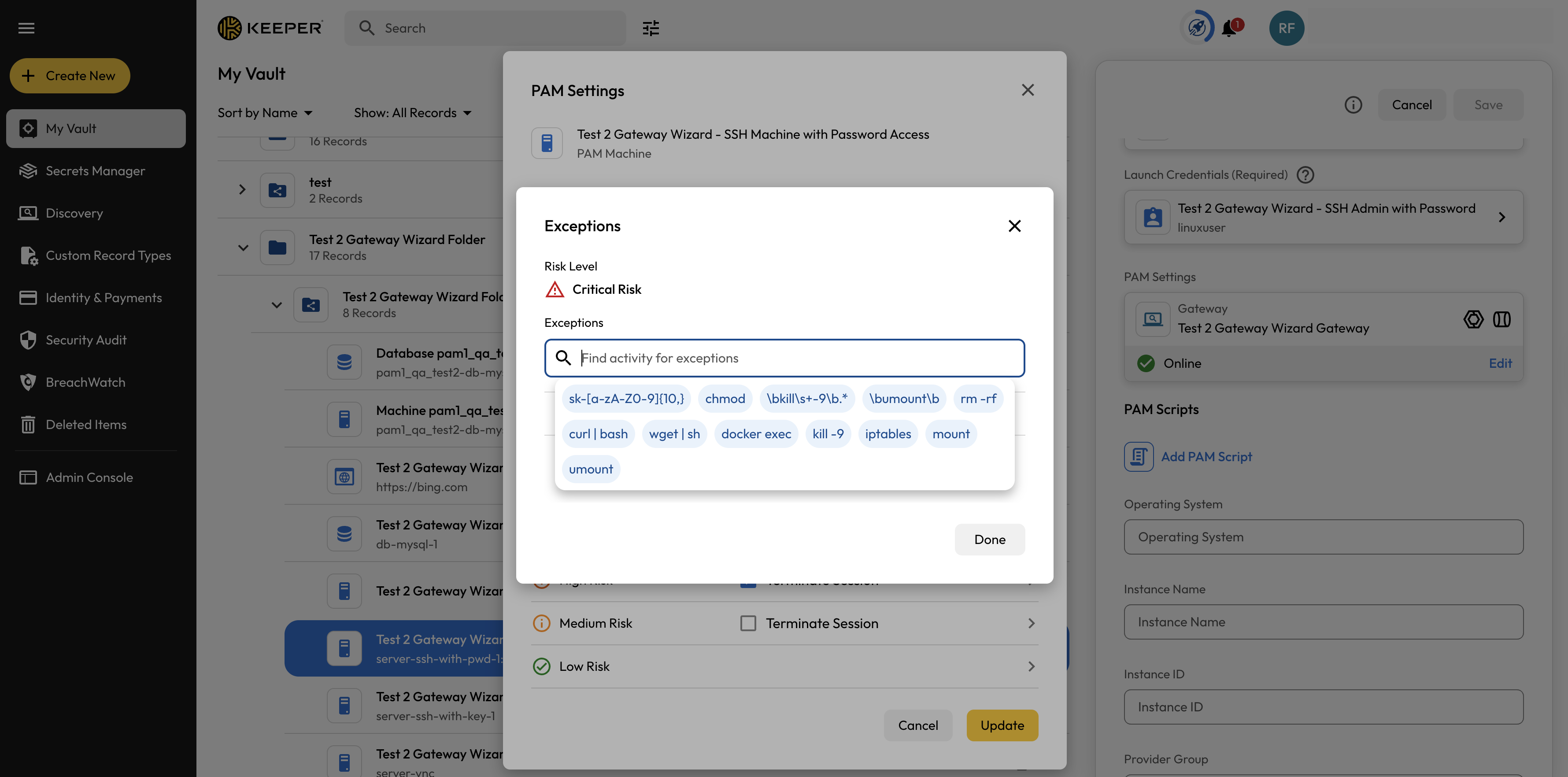
Use the Exceptions popup to define custom keywords or regex patterns - choose from the provided dropdown examples or enter your own plain text or regex strings. These rules apply on top of the standard KeeperAI Detection policy settings.
Monitor: Allows the action through while still collecting an AI summary.
Terminate: Ends the session immediately on match.

Risk Level Classifications
KeeperAI will categorize commands into risk levels for threat detection:
Critical: Severe security threats requiring immediate action
High: Significant security concerns that should be addressed promptly
Medium: Potential security issues requiring monitoring
Low: Normal or benign behavior that does not require monitoring
Reviewing Session Summaries
KeeperAI generates AI-powered summaries for each recorded session, helping security teams quickly review and understand user activity. To view a summary, open the options menu for the monitored resource and select Session Activity.
Access the Session Recordings section in the Vault UI
Right click on the record or click on the options icon
⋮and select "Session Activity"
Options:
Open Analysis: Click on a session row to launch the Session Analysis popup, showing detailed summaries of each command executed.
Playback: Click the Play button to watch the full session recording in real time.
Download: Use the Download button to save session recording files locally for offline review.
When downloading session recording files locally, please note that these files will be unencrypted and may contain sensitive information. Ensure you store and handle these files securely according to your organization's data protection policies.


SIEM Integration
KeeperAI automatically generates ARAM events for detected threats and resource configurations, enabling integration with your existing security workflow.
We recommend the following:
Set up Alerts to send real-time notifications upon the detection of a threat
Send all event logs to your connected SIEM provider
Review Efficiency
Privileged session review is traditionally a manual, time-intensive task: a reviewer watches session playback - often at or near real time - to identify the commands and actions that carry security or compliance significance. KeeperAI replaces full playback with a structured, per-command summary and risk classification, so reviewers read findings rather than watch footage.
The table below models the reviewer time required to assess a single recorded session, comparing manual playback against review of a KeeperAI summary.
Manual playback (real time)
~30 min
1:1 with session duration
Manual playback (accelerated 1.5–2×)
~15–20 min
Faster playback, with pauses to inspect commands
KeeperAI summary review
~1–3 min
Read per-command findings and risk levels
Under this model, KeeperAI represents an estimated 85–95% reduction in reviewer time per session relative to accelerated manual playback, with the proportional savings increasing as session length grows.
Methodology. These figures are an analytical estimate, not a measurement of customer environments. Consistent with Keeper's zero-knowledge architecture, Keeper does not inspect customer session contents or reviewer behavior. The model assumes (1) manual review time scales linearly with session duration, (2) accelerated playback yields a 1.5–2× speed-up net of pauses, and (3) summary review time is approximately constant per session regardless of length. Actual results vary with session length, command density, reviewer practice, and organizational policy.
Why the savings scale
Manual review time grows with session duration: a 2-hour session takes roughly four times as long to watch as a 30-minute one. KeeperAI summary review grows with the number of significant commands, not wall-clock length, so the longer and more idle-heavy the session, the larger the proportional time saving.
FAQ
Q: Can I use my own LLM model with KeeperAI?
Yes, KeeperAI supports any provider implementing the OpenAI /chat/completions API endpoint, as long as the model supports both text and image input (multimodal/vision capabilities).
Q: Does KeeperAI work in real-time?
Yes, KeeperAI analyzes privileged sessions in real-time after each user entry and saves completed session recordings and analysis in encrypted files for later review.
Q: Why do I need a vision-enabled model?
KeeperAI sends screenshots alongside session text for GUI protocols (RDP, VNC, RBI), so the model must accept image input. SSH, Telnet, and database protocols are text-only, but a multimodal model still works fine for those. When in doubt, pick a model with vision support - it covers all cases.
Q: How does KeeperAI handle sensitive information?
KeeperAI stores session recordings and analysis in encrypted files. These files can only be decrypted by the customer who has privilege to view session recordings. In a future release, KeeperAI will include enhanced Personally Identifiable Information (PII) detection with options to remove PII before sending to the LLM or remove PII from LLM responses.
Q: How does data flow between the Gateway, LLM provider, and Keeper's systems?
Gateway ↔ LLM Provider: The Keeper Gateway communicates directly with your configured LLM provider via encrypted HTTPS to analyze session commands in real-time
Gateway → Keeper: After receiving the LLM analysis, the Gateway encrypts all session data and analysis results using a unique record key before transmitting to Keeper's endpoint for storage.
Q: Can I run KeeperAI in air-gapped environments?
Yes, using on-premises LLM deployment with a vision-enabled model, you can interact with a local service instead of third-party or internet-accessible services. Ensure your self-hosted model supports multimodal input (text and images).
Q: What's the expected cost per session analysis?
Token counts vary by protocol because each uses a different system prompt. Here are the approximate system prompt sizes:
TUI / SSH / Telnet
~3,200
GUI / RDP / VNC
~3,200
RBI
~2,500
KeeperDB
~2,500
Each user prompt adds roughly 15–50 tokens depending on command length, so a typical per-request total runs 3,500–4,000 tokens.
For each screenshot sent you can expect image tokens on top of that. The formula varies by model but a rough estimate is:
image_tokens ≈ (width × height) / 700
For the overall session summary at the end the system prompt is around 2,000 tokens for the system message. The user prompt grows with session length - roughly 100 tokens for 10 commands, scaling up from there.
Vision-enabled models may have different pricing tiers; consult your LLM provider for multimodal pricing details. Image analysis for RDP/VNC/RBI sessions will incur additional costs based on the number of screen captures analyzed.
Q: How do I choose a model?
Model choice is a tradeoff between speed, accuracy, and cost. Smaller models (4B–20B parameters) are cheaper and faster; larger ones are more accurate but slower and more expensive.
4B–20B
Gemma 3 4B, Haiku
Fast, cheap, good for most sessions
20B–70B
Haiku, Mistral 7B
Good balance; recommended starting point
70B–120B+
Sonnet, GPT-4o
Higher accuracy; slower and more expensive
Q: How do I verify my model supports vision capabilities?
Consult your LLM provider's documentation to confirm the model supports multimodal input (text and images). Look for keywords like "vision," "multimodal," "image input," or "visual understanding" in the model specifications. If you're unsure, contact pam@keepersecurity.com for assistance in selecting an appropriate model.
Q: What data is sent to third-party LLM providers, and how is it protected?
Command text and reconstructed images (for visual protocols like RDP, VNC, RBI) are sent via encrypted HTTPS to your configured LLM provider. The LLM output response is then encrypted before being saved to Keeper's cloud. All traffic occurs directly from the Gateway to the LLM provider. To maintain zero-knowledge and zero-trust, no traffic is ever sent to Keeper without first being encrypted by your private key.
Q: Can I export threat detection data for compliance reporting?
Yes, session analysis data can be exported in JSON format from the Session Analysis popup for compliance reporting purposes.
Last updated
Was this helpful?