> For the complete documentation index, see [llms.txt](https://newdocs.keeper.io/en/llms.txt). Markdown versions of documentation pages are available by appending `.md` to page URLs; this page is available as [Markdown](https://newdocs.keeper.io/en/keeperpam/privileged-access-manager/keeperdb/integration-with-keeperpam.md).
# Integration with KeeperPAM
Step by step instructions for integrating KeeperDB with KeeperPAM
## Overview
KeeperDB integrates with KeeperPAM to provide managed, audited database access. Users launch database sessions without handling credentials, and admins keep full policy control, session visibility, and reviewability.
### Key capabilities
* Fully audited database sessions
* Passwordless access with workflow, approvals, and check-in/check-out
* Zero standing privilege with just-in-time access
* Embedded visual sessions or CLI access
## Prerequisites
An active KeeperPAM license is required. KeeperPAM is available for both business and enterprise customers.
* [KeeperPAM Homepage](https://www.keepersecurity.com/privileged-access-management/)
* [Request a Demo](https://www.keepersecurity.com/contact.html?t=b\&r=sales)
* [Contact Support](https://www.keepersecurity.com/support.html)
Before you configure KeeperDB access, make sure you have:
* Reviewed [Getting Started](/en/keeperpam/privileged-access-manager/getting-started.md)
* Deployed a [Keeper Gateway](/en/keeperpam/privileged-access-manager/getting-started/gateways.md)
### Visual walkthrough
{% hint style="info" %}
These steps show the manual setup flow. You can also import resources with Keeper Commander CLI.
{% endhint %}
### Create a PAM Database record
In the Keeper Vault, open a shared folder that is provisioned to a Gateway. Then create a **PAM Database** record.
This example uses a Microsoft SQL Server database.
Enter the basic connection details such as hostname and port. Then select **Set Up** to configure PAM settings. Make sure the correct **Database Type** is selected.
### Configure rotation settings
If credential rotation is required, Keeper uses the linked Administrative Credentials record to connect and rotate the target credential over the configured port.
### Configure connection settings
Enable the connection with the required database protocol. In this example, the protocol is SQL Server.
Enable session recording and key event capture. To activate KeeperAI threat detection for the session, enable all three session recording options.
### Configure KeeperDB and CLI settings
The **KeeperDB** tab lets you allow CLI sessions, visual KeeperDB sessions, or both. If both are enabled, the user chooses the launch mode at runtime.
Session persistence is disabled by default. Each session starts fresh.
* If **By User** is selected, UI preferences and query state are retained for that user.
* If **By Resource** is selected, shared users reuse the same UI preferences and latest query state.
* **By Resource** also prevents simultaneous multi-user connections to that resource.
### Configure just-in-time access
The **JIT** tab controls whether the session requires an ephemeral account or temporary privilege elevation.
### Configure tunnel settings with KeeperDB Proxy
A local Keeper [Tunnel](/en/keeperpam/privileged-access-manager/tunnels.md) can be created from the Keeper Desktop application when tunneling is enabled on the resource. If **KeeperDB Proxy** is also enabled, the Keeper Gateway injects the launch credentials into the connection stream without exposing them to the user.
This lets users connect with their preferred database tool, including the native KeeperDB application, without handling credentials directly.
### Enable KeeperAI
If KeeperAI is enabled, all interaction with the database is recorded and monitored by the configured AI agent running on the Keeper Gateway.
* [Learn more](/en/keeperpam/privileged-access-manager/keeperai.md) about setting up KeeperAI on the Gateway
### Enable workflow controls
Enable workflow controls to enforce policies such as check-in/check-out, approvals, and MFA. Users shared to the record with launch access must follow the workflow policy configured on that record.
* [Learn more](/en/keeperpam/privileged-access-manager/just-in-time-access-jit/workflow.md) about Keeper Workflow
### Launch KeeperDB
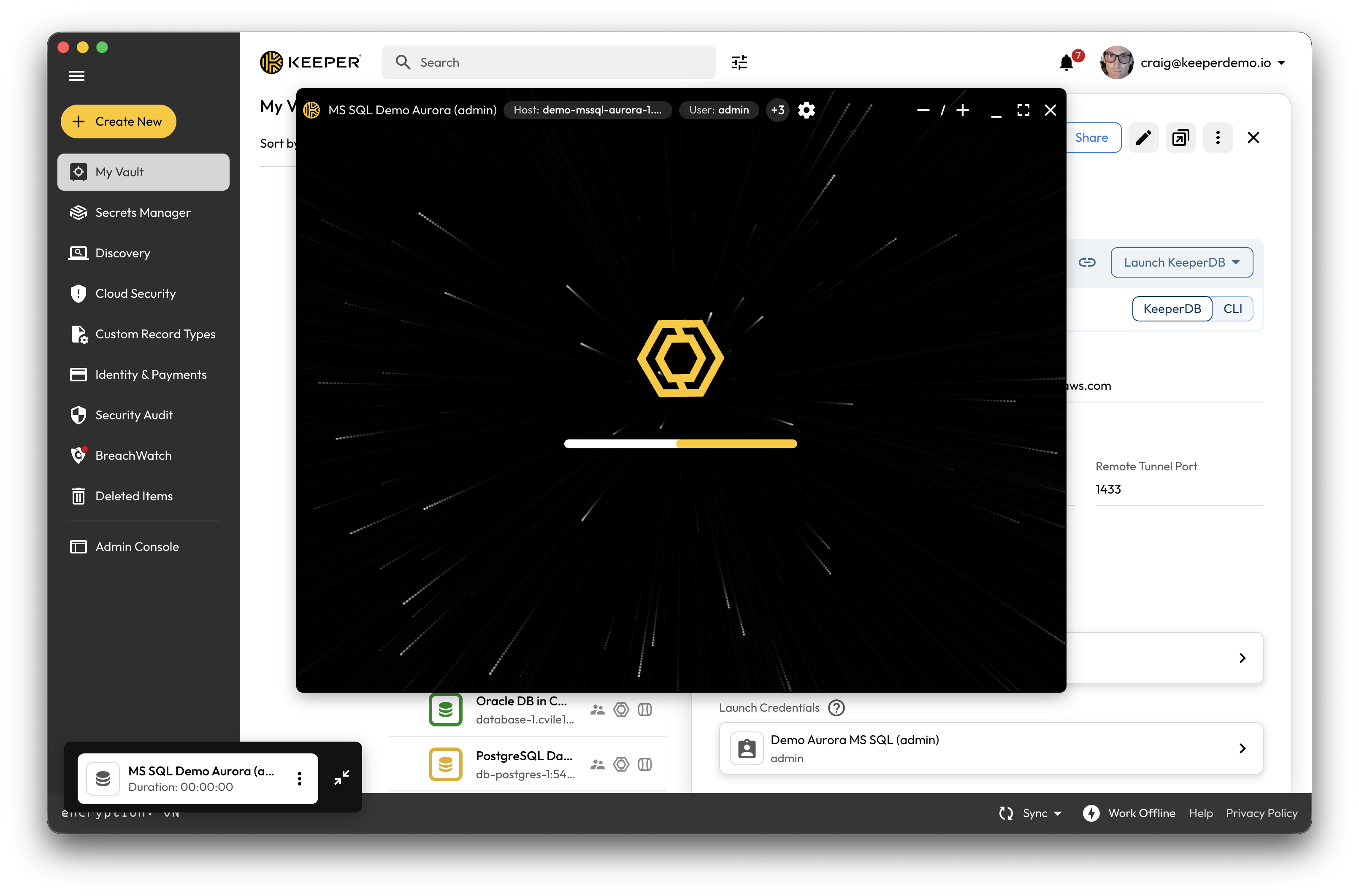
When a user checks out the resource and launches KeeperDB, the session opens directly in the Vault. The connection is established through the Keeper Gateway without exposing the underlying credentials.
The query editor opens in the Vault and can be expanded to full screen.
The embedded session supports the same core features as the standalone app, including multi-sheet editing, query history, monitoring, and graph views.
### Review session activity
If you have permission to review recordings, open the record details and go to **Session Activity**. This view shows all recorded database session activity for the resource.
### Review the KeeperAI summary
KeeperAI generates a high-level summary and step-by-step analysis for the session. If you need more context, you can open the playback and review the full recording.
---
# Agent Instructions
This documentation is published with GitBook. GitBook is the documentation platform designed so that both humans and AI agents can read, navigate, and reason over technical content effectively. Learn more at gitbook.com.
## Querying This Documentation
If you need additional information that is not directly available in this page, you can query the documentation by asking a question.
Perform an HTTP GET request on the following URL with the `ask` and `goal` query parameters:
```
GET https://newdocs.keeper.io/en/keeperpam/privileged-access-manager/keeperdb/integration-with-keeperpam.md?ask=&goal=
```
`ask` is the immediate question: it should be specific, self-contained, and written in natural language.
`goal` is what the user is ultimately trying to achieve, the reason they need the answer. Sharing it helps GitBook give you a better, more relevant answer. A goal is most helpful when it describes the outcome the user wants rather than restating the question. For example, with `ask=how do I create an API token`, a goal like `automate deployments from our CI pipeline` lets GitBook tailor the answer to that use case.
The response will contain a direct answer to the question and relevant excerpts and sources from the documentation.
Use this mechanism when the answer is not explicitly present in the current page, you need clarification or additional context, or you want to retrieve related documentation sections.