For the complete documentation index, see llms.txt. This page is also available as Markdown.

Microsoft Entra ID Users

Rotating Microsoft Entra ID Admin and User passwords with Keeper

Overview

In this guide, you will learn how to rotate passwords for Microsoft Entra ID users. In Keeper, the PAM Configuration contains all of the information needed to rotate passwords. The record containing the Microsoft Entra ID user accounts to be rotated are stored in the PAM User record.

The Keeper Gateway uses Azure APIs to rotate the credentials defined in the PAM User records.

  • See the Azure Overview for a high level overview and getting started with Azure

Prerequisites

This guide assumes the following tasks have already taken place:

1. Set up PAM Configuration

Note: You can skip this step if you already have a PAM Configuration set up for Azure.

Prior to setting up the PAM Configuration, make sure that:

  • A Keeper Secrets Manager application has been created

  • A Keeper Rotation gateway is already installed, running, and is provisioned in the Keeper Secrets Manager application you created.

  • We recommend installing the Keeper Gateway service in a machine within the Azure environment in order to rotate other types of targets.

In the left menu of the vault, select "Secrets Manager", then select the "PAM Configurations" tab, and click on "New Configuration". The following table lists all the required fields that needs to be filled on the PAM Configuration Record with your information:

Field
Description

Title

Configuration name, example: Microsoft Entra ID Configuration

Environment

Select: Azure

Gateway

Select the Gateway that is configured on the Keeper Secrets Manager application.

Application Folder

Select the Shared folder where the PAM Configuration will be stored. We recommend placing this in a shared folder with the admin accounts.

Azure ID

A unique ID for this instance of Azure. This is for your reference and can be anything, but its recommended to be kept short Ex: Azure-1

Client ID

The unique Application (client) ID assigned to your app by Microsoft Entra ID when the application was registered

Client Secret

The client credentials secret for the Azure application. It’s random looking text.

Subscription ID

The UUID that identifies your subscription (i.e. Pay-As-You-GO) to use Azure services.

Tenant ID

The UUID of the Microsoft Entra ID

2. Set up one or more PAM User Records

Keeper Rotation uses the Azure Graph API to rotate the PAM User records in your Azure environment. The PAM User records need to be in a shared folder that is shared to the KSM application created in the pre-requisites.

The following table lists all the required fields that needs to be filled on the PAM User record with your information:

Field
Description

Title

Keeper record title i.e. Azure User1

Login

Case sensitive username of the account being rotated. The username has to be in one of the following formats: domain\username username@domain

Password

Providing a password is optional. Performing a rotation will set one if this field is left blank.

There should only be one PAM User record for each Microsoft Entra ID user. Having multiple PAM User records with the same user/login will cause conflicts.

3. Configure Rotation on the PAM User Records

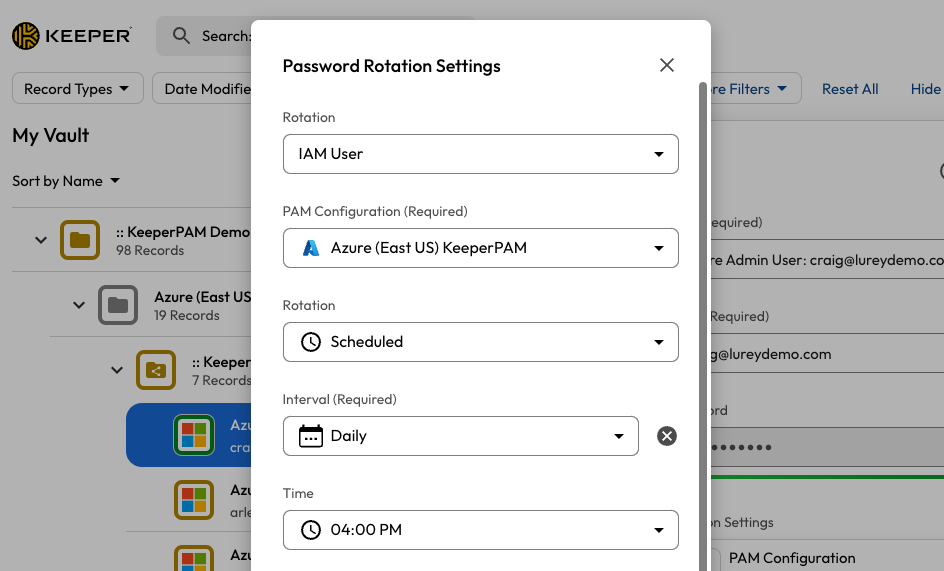
Select the PAM User record(s) from Step 3, edit the record and open the "Password Rotation Settings".

Rotation Settings
  • Select "IAM User" for the rotation method, since this uses Azure APIs.

  • The "Rotation Settings" should select the PAM Configuration setup previously.

  • Select the desired schedule and password complexity.

  • Upon saving, the rotation button will be enabled and available to rotate on demand, or via the selected schedule.

Any user with edit rights to a PAM User record has the ability to setup rotation for that record.

Rotation Settings for Microsoft Entra ID Users

Last updated

Was this helpful?